
Menu board design guide
How to design a menu board people can actually read
Practical, platform-agnostic tips for digital menu boards: text size for the viewing distance, contrast, fonts, columns, long names, descriptions and promo space. Plus a quick checklist to test your own board.
Whether your menu runs on digital signage software, a PowerPoint or Canva slide, a chalkboard or tap list software, the same few things decide whether guests can read it: how big the item names are from where they stand, how much the text stands out from the background, and how much you are trying to fit on one screen. These are rules of thumb, not lab results, and the best test is still to stand at the back of the room and read your own board.
1Size the text for the farthest guest
Most hard-to-read boards have one problem: the item names are too small. Stand where your farthest guest orders from and read the board. If you have to squint at the names, so do they.
A common sign-making rule of thumb is about an inch of letter height for every 10 feet of viewing distance. On a 1080p board, text set at 40 px is about an inch tall on a 55-inch TV.
Treat 26 px as the floor for item names on a 1080p board (about 0.65 inches tall on a 55-inch TV). Below that, names get hard to read from across a room. Categories and prices can be smaller than the names, but descriptions and details should not be what you squeeze to fit more items.
| Text size | 50" TV | 55" TV | 65" TV |
|---|---|---|---|
| 26 pxfloor | 0.59 in | 0.65 in | 0.77 in |
| 40 px | 0.91 in | 1.00 in | 1.2 in |
| 60 px | 1.4 in | 1.5 in | 1.8 in |
| Screen size | Viewing distance |
|---|---|
| 32" | 4 feet |
| 40" | 5 feet |
| 46" | 5½ feet |
| 50" | 6 feet |
| 55" | 7 feet |
| 60" | 7½ feet |
Behind the bar? Use at least a 50" screen. See our hardware guide for TVs and Fire TV devices.
2Use strong contrast, and be careful with photos
Light text on a dark background or dark text on a light one. Aim for a contrast ratio of at least 4.5:1, the minimum the WCAG accessibility guidelines set for normal text. Free contrast checkers online will tell you the ratio for any two colors.
Your brand color is great for accents, prices and category names, but check it against the background before you use it for text. Mid-tone colors on dark backgrounds often fail.
A background photo is the most common reason a board fails contrast. Text over a busy photo needs a dark (or light) overlay that covers most of it: about 80% or more is a safe target. A plain or softly graded background is easier still.
3Two fonts, and no scripts on item names
Use one display font for the heading and category names and one plain, readable font for item names, prices and details. More than two font families makes a board look busy.
Script, handwritten and decorative fonts are fine for your venue name. On item names they are hard to read from across a room.
Keep the sizes in proportion: category names at least as big as item names, and a heading that does not tower over the list. If the heading is more than about twice the size of the item names, it is taking room the menu needs.
4Pick the columns for your item count
On a landscape TV, two to four columns is the usual range. Fewer columns means bigger text for a short list; more columns fits a long list without shrinking the names.
Balance the columns so one side does not end early, and give every column the same left edge, with prices lined up on the right.
Food menus read best when each category stays together in one column. Drink lists can let a long category continue into the next column.
If the names still get too small, split the list over two pages or two screens rather than shrinking everything.
5Plan for long item names
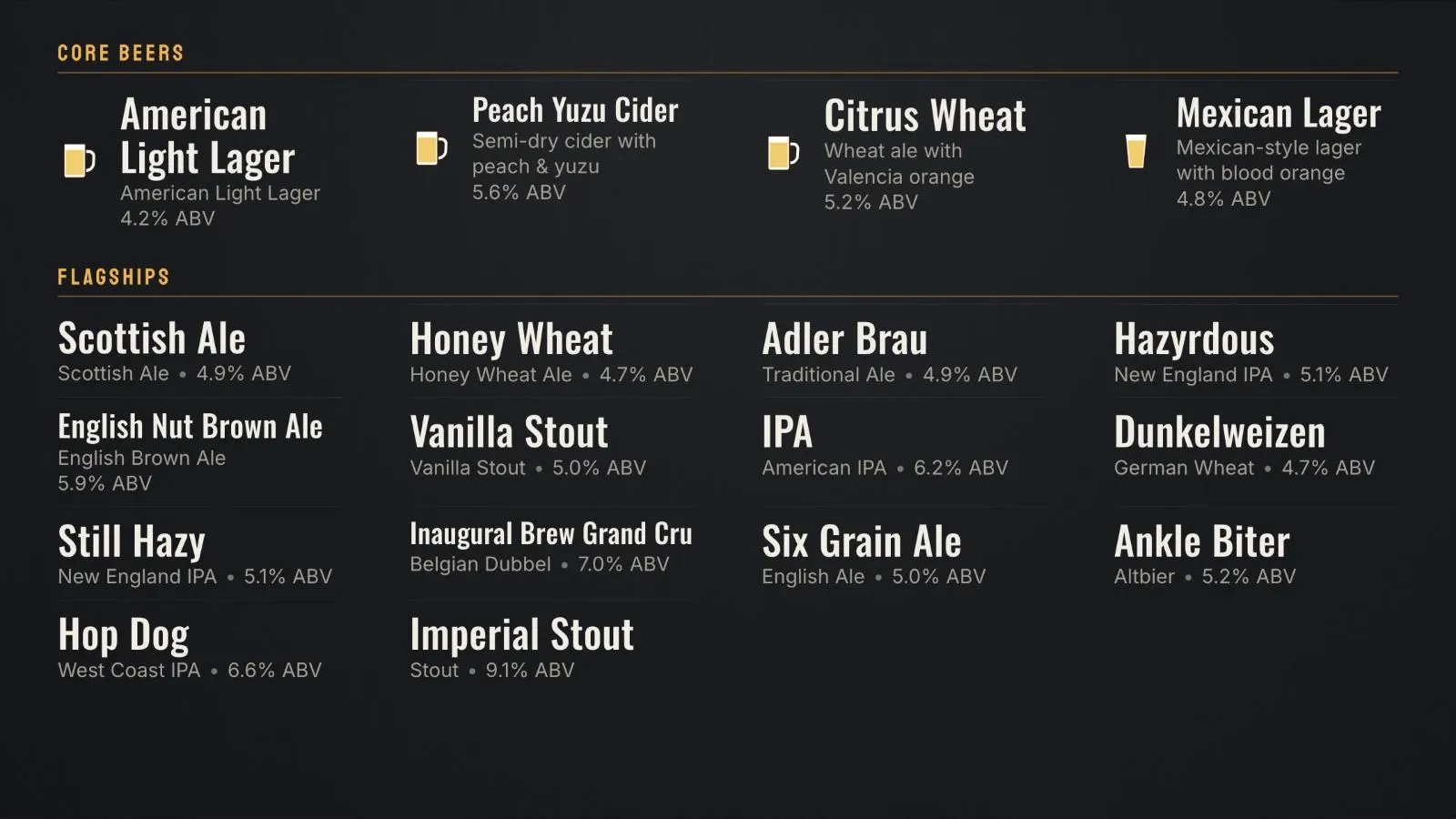
Beer and cocktail names can be long. A condensed font fits more letters per line without getting smaller.
When one name is too long for its column, shrink just that name slightly or let it wrap onto two balanced lines. Do not shrink every name on the board to fit the longest one.
6Keep descriptions short
A short line of details under each name (style, ABV, IBU, brewery) helps guests choose. Keep a number and its unit together, like "6.8% ABV".
Long descriptions are the fastest way to shrink a board. Put them on your website or QR menu, where guests can read them up close, and keep the TV to the short version.
7Leave room for promos from the start
Promos sell, but a promo area takes space from the list. Decide where promos go (beside the list, in a banner, or full screen between pages) before you size the menu, so they do not crowd it later.
If promos push the item names under the floor, hide one promo space or show promos full screen between menu pages instead.
8Vertical or horizontal TV
A horizontal (landscape) TV suits a wall or the back bar, with the menu in two to four columns.
A vertical (portrait) TV suits a single screen beside the taps or at the register. Use one or two long columns. Put the promo slot where guests in line will see it.
A board designed for one orientation rarely works on the other. Set the screen direction first, then design.
9Use the whole screen
A short list in small type at the top of the screen, with the bottom quarter empty, wastes the space you paid for. Grow the text until the list fills the screen.
When items come and go, the right text size changes too. Check the board again after a big menu change.
Quick self-check for your menu board
Stand where your farthest guest orders from and go down the list. Every "no" is worth fixing.
- I can read every item name from the farthest spot guests order from.
- Item names are at least 26 px on a 1080p board (about 0.65 in tall on a 55-inch TV).
- All text has strong contrast with what is behind it (4.5:1 or more), including on any photo.
- The board uses no more than two fonts, and item names are not in a script or decorative font.
- Category names are at least as big as item names, and the heading is not more than about twice their size.
- Columns are about the same height, with one left edge.
- Descriptions are short, with long ones kept for the website or QR menu.
- Promos have their own space and do not shrink the list below the floor.
- The screen size suits the viewing distance (at least 50 inches behind a bar).
- The text fills the screen, without a big empty area.
Coming from another platform?
You don't have to start your menu over to get a board that reads well.
Import from a spreadsheet
Export your items from your current tool or POS to a spreadsheet and import them into Live Tap Lists in one go.
Sync with your POS
Connect Square, Clover, Toast, Genius or GoTab and your menu items stay in sync, so the board updates when your menu does.
Compare the options
See how Live Tap Lists compares with other menu board tools, and with building your own slides or image files.
Use the TV you have
Any TV with an HDMI port works with an Amazon Fire TV Stick. A Fire TV television has it built in.
Live Tap Lists themes do this for you
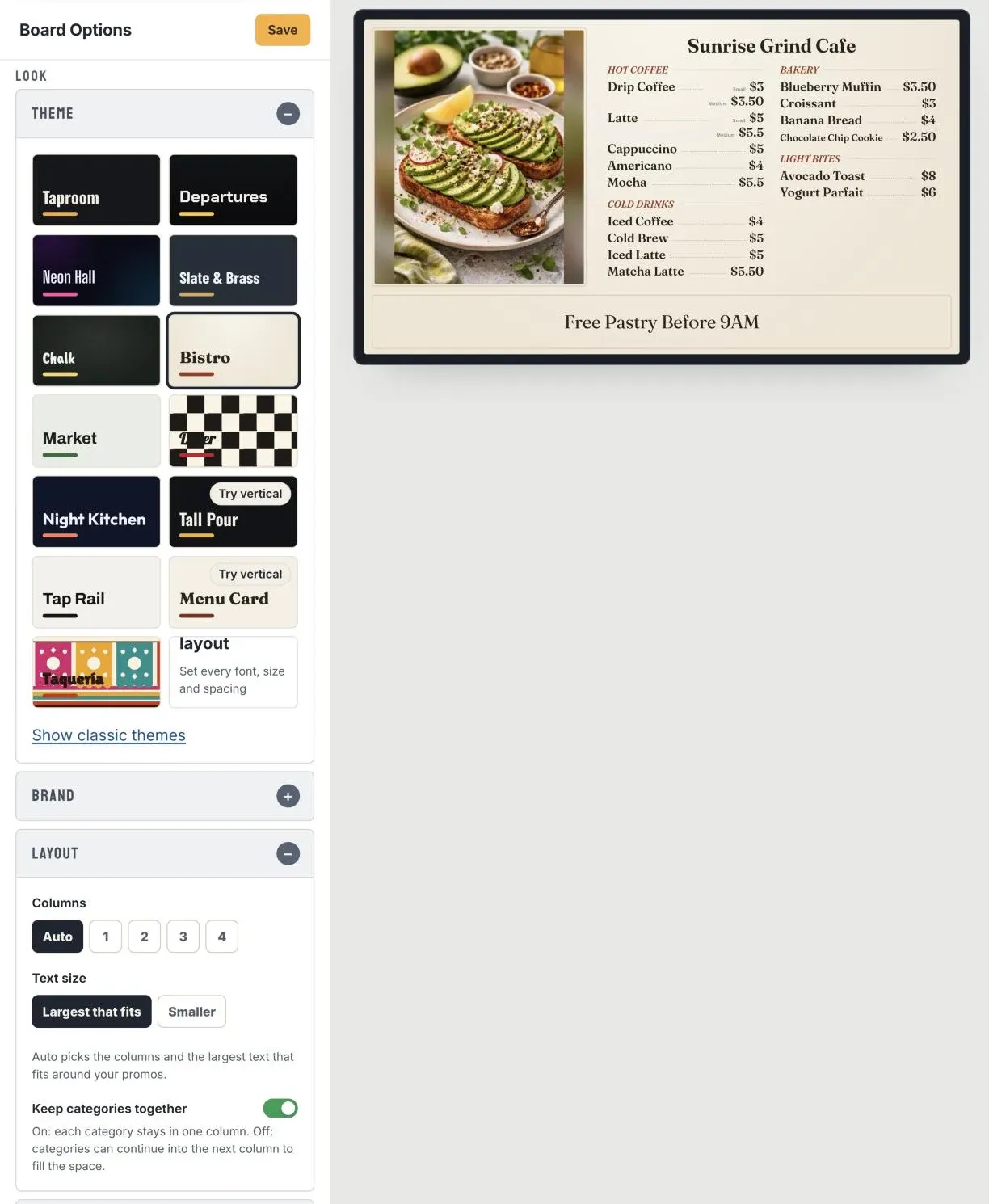
Every new board in Live Tap Lists starts with a theme. Pick one and it sizes the text to the largest that fits your items around your promos, chooses the columns, and keeps every text color readable. When you add or remove items, the board fits itself again. You choose the brand color, the fonts, Columns (Auto or 1 to 4) and Text size, or switch to a custom layout for full control. Read about the themes.
Drink themes
Taproom
The new default. Charcoal with an amber accent and numbered tap badges. Clean at any tap count.
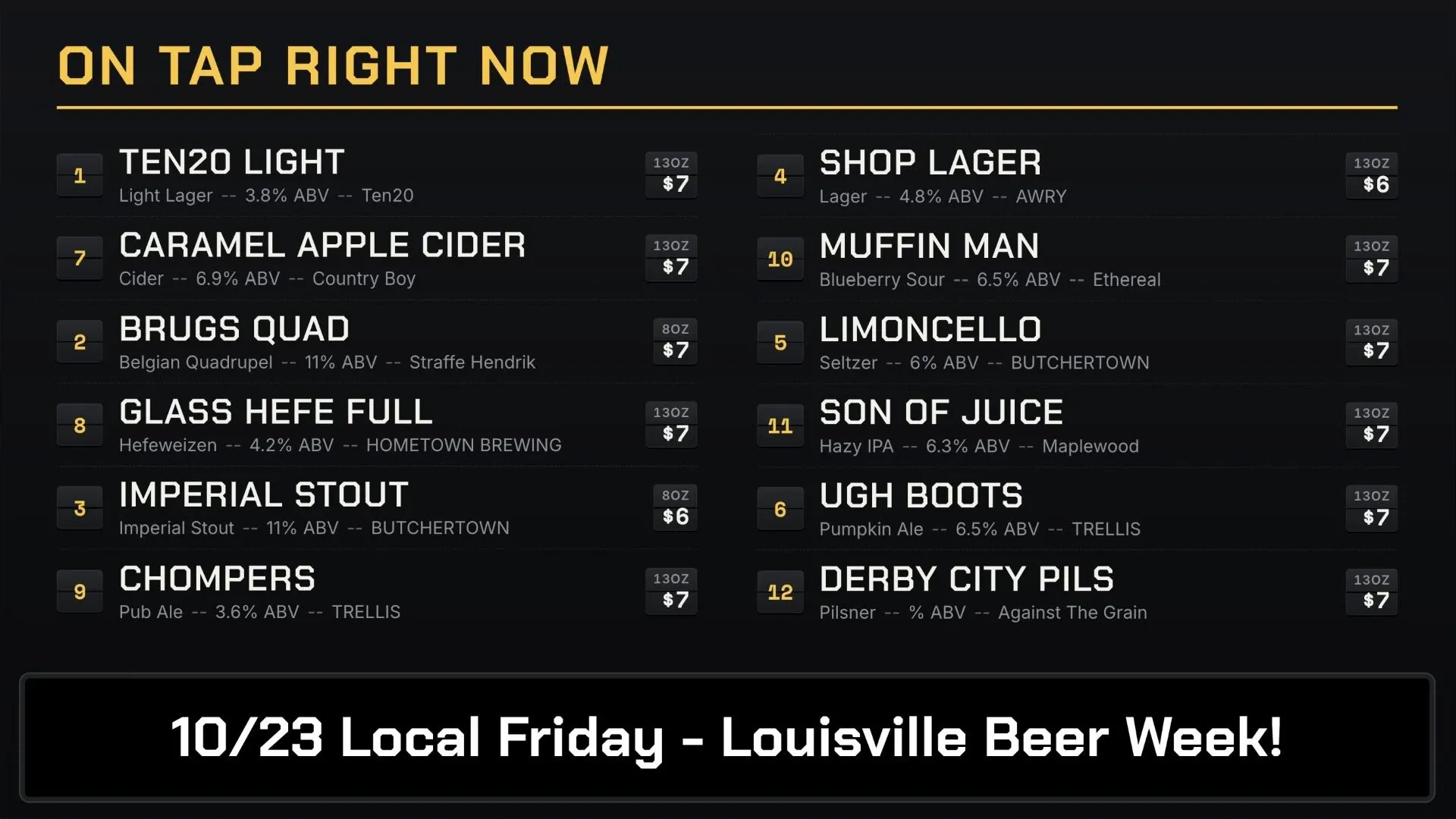
Departures
An airport departures board: tap numbers and prices on split-flap tiles, categories on yellow gate tags.
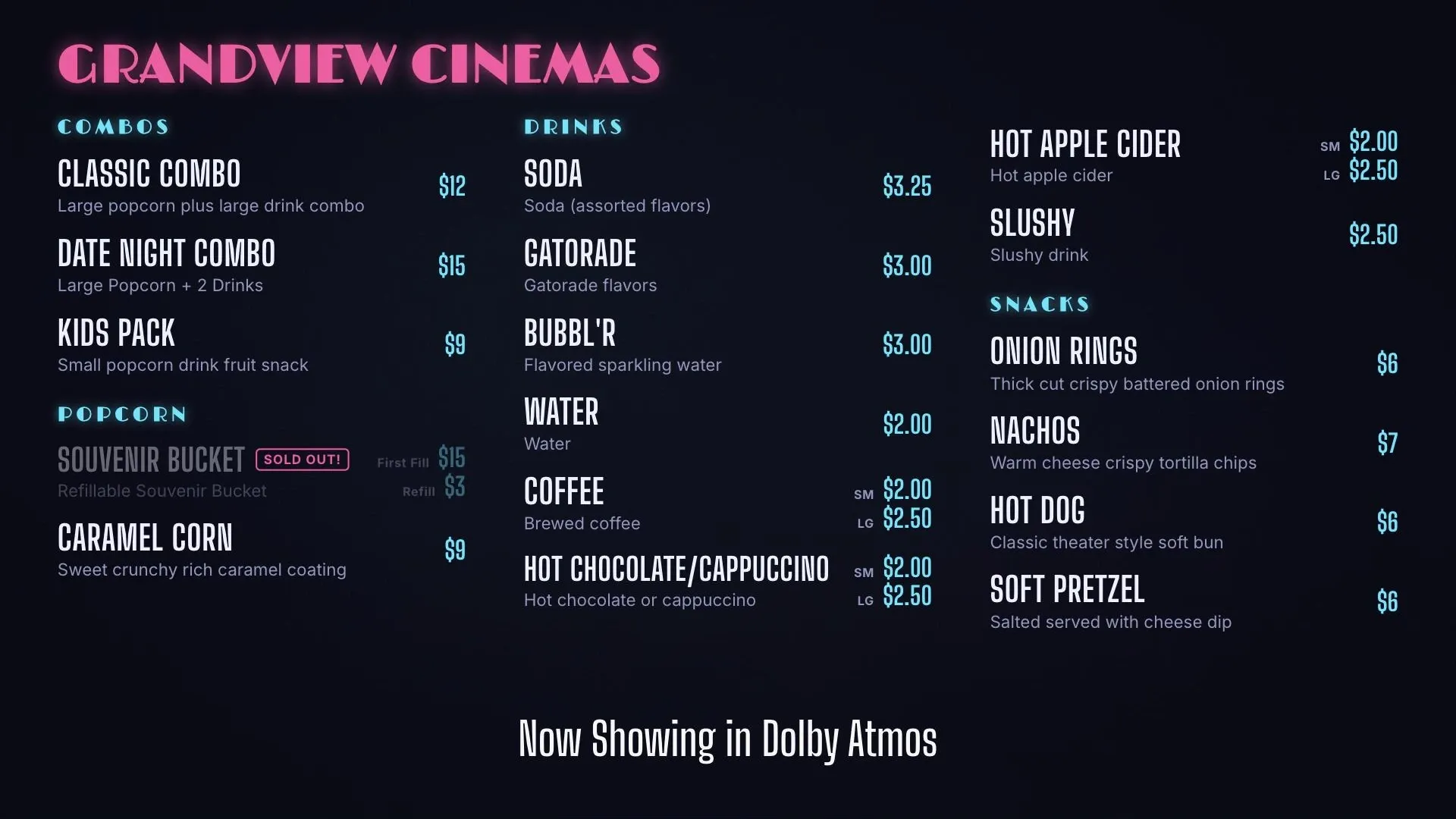
Neon Hall
Deep navy with glowing pink and cyan. Loud, but every text color passes contrast.
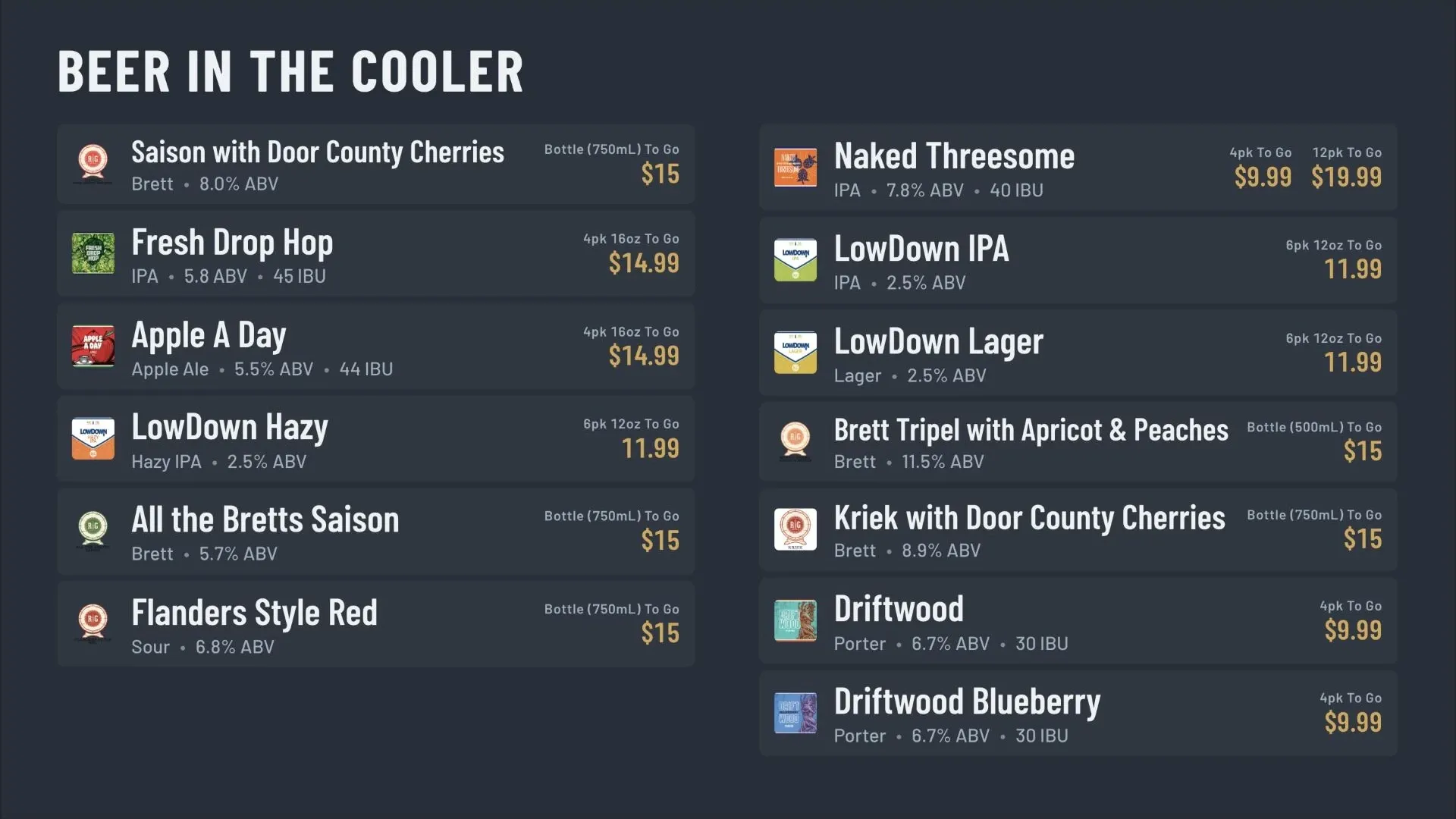
Slate & Brass
Blue-gray rows with large brass tap numbers. Condensed type fits long beer names.
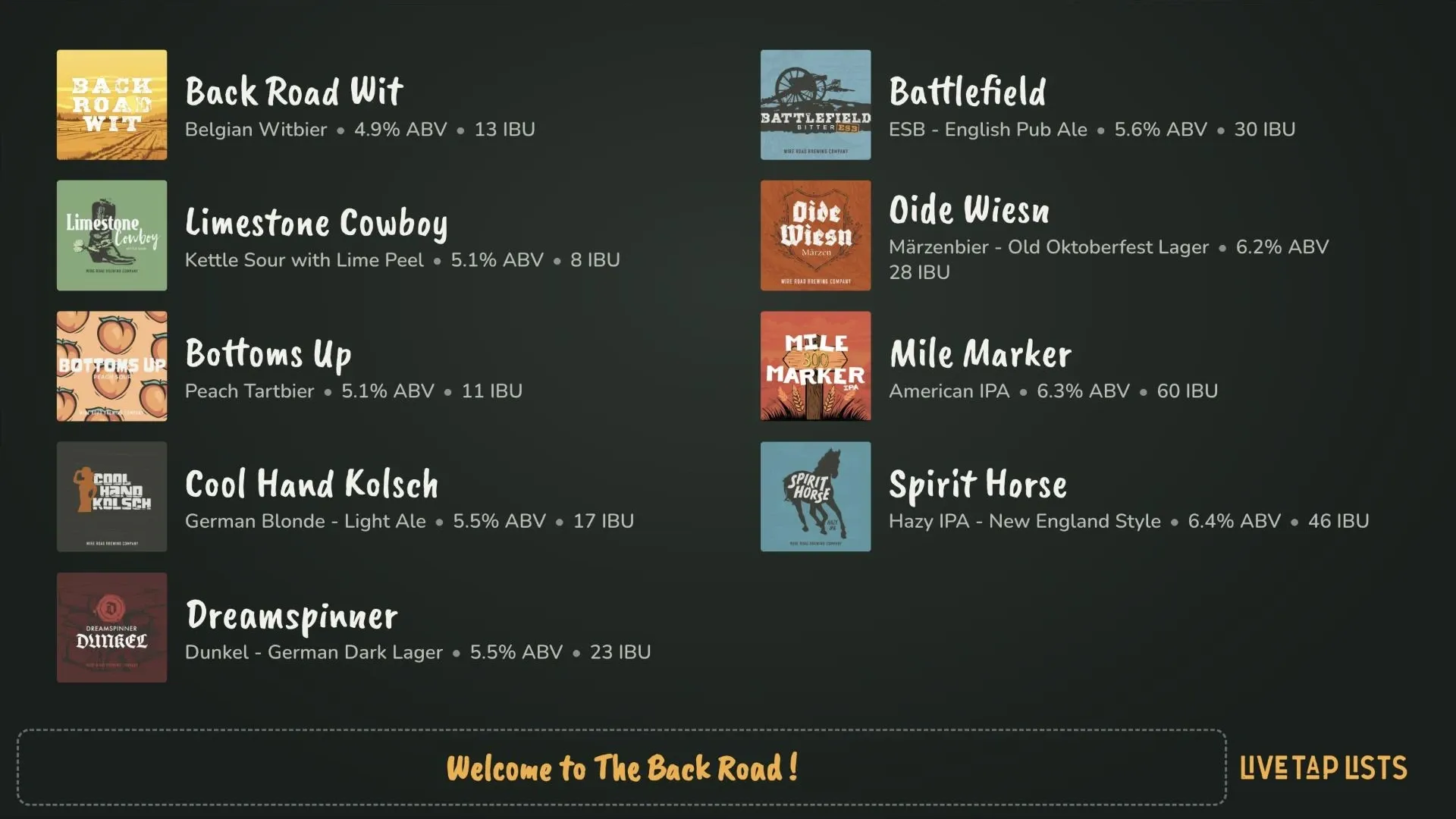
Chalk
A cleaner take on the chalkboard: hand-drawn names, plain-text details, no photo noise.
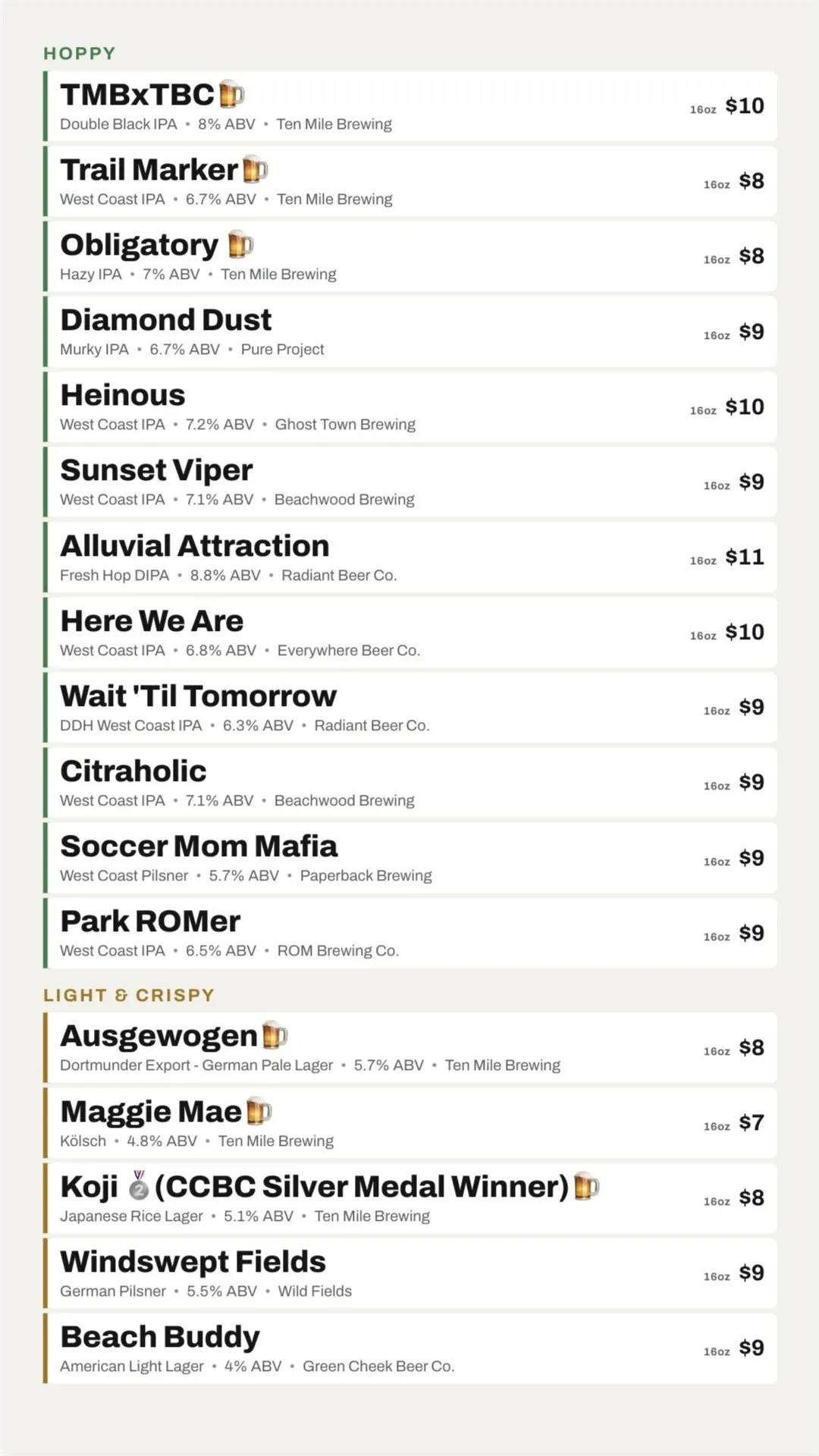
Tap Rail
White rows with a colored rail for each style family, so a tall list stays easy to scan.
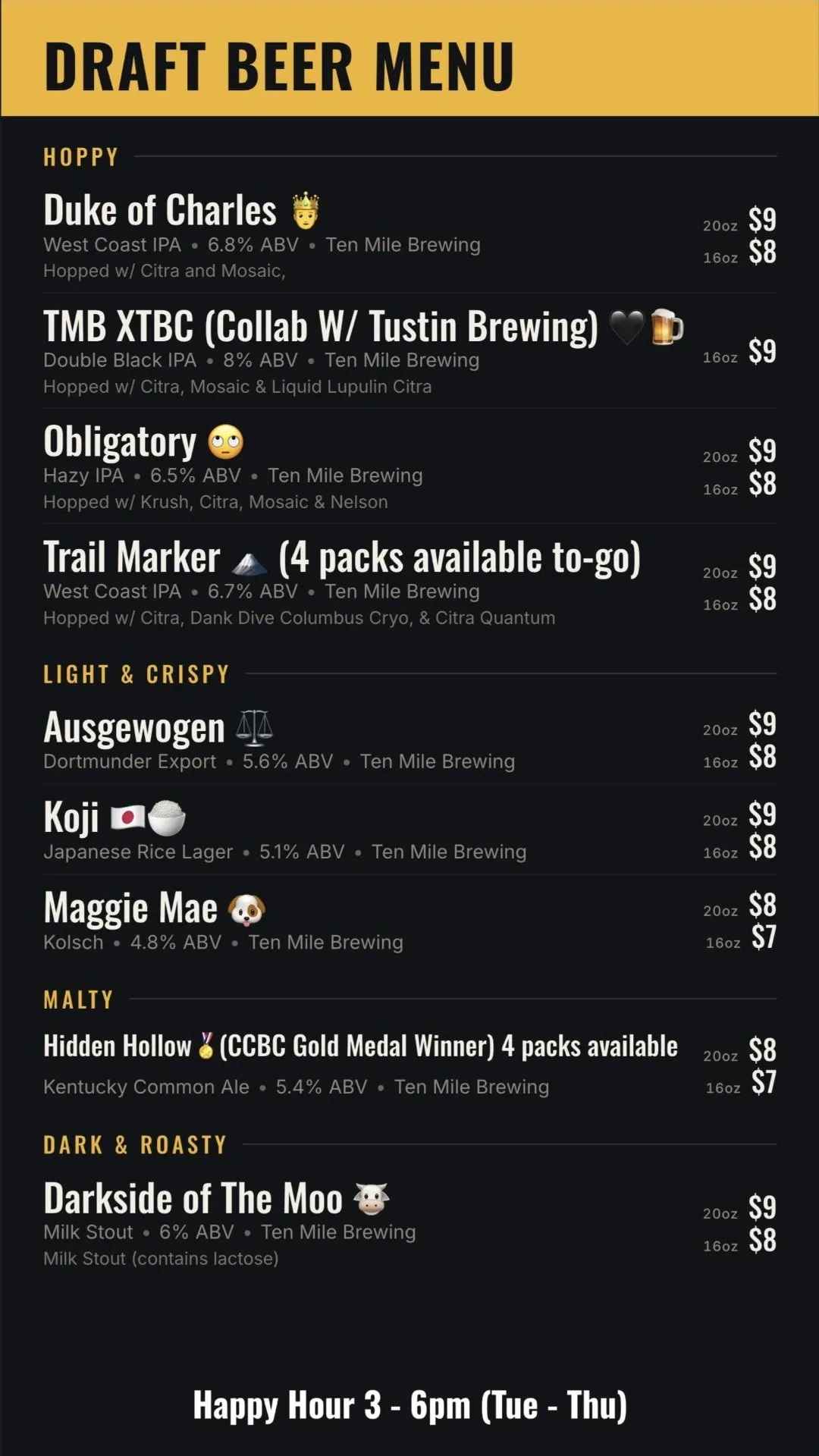
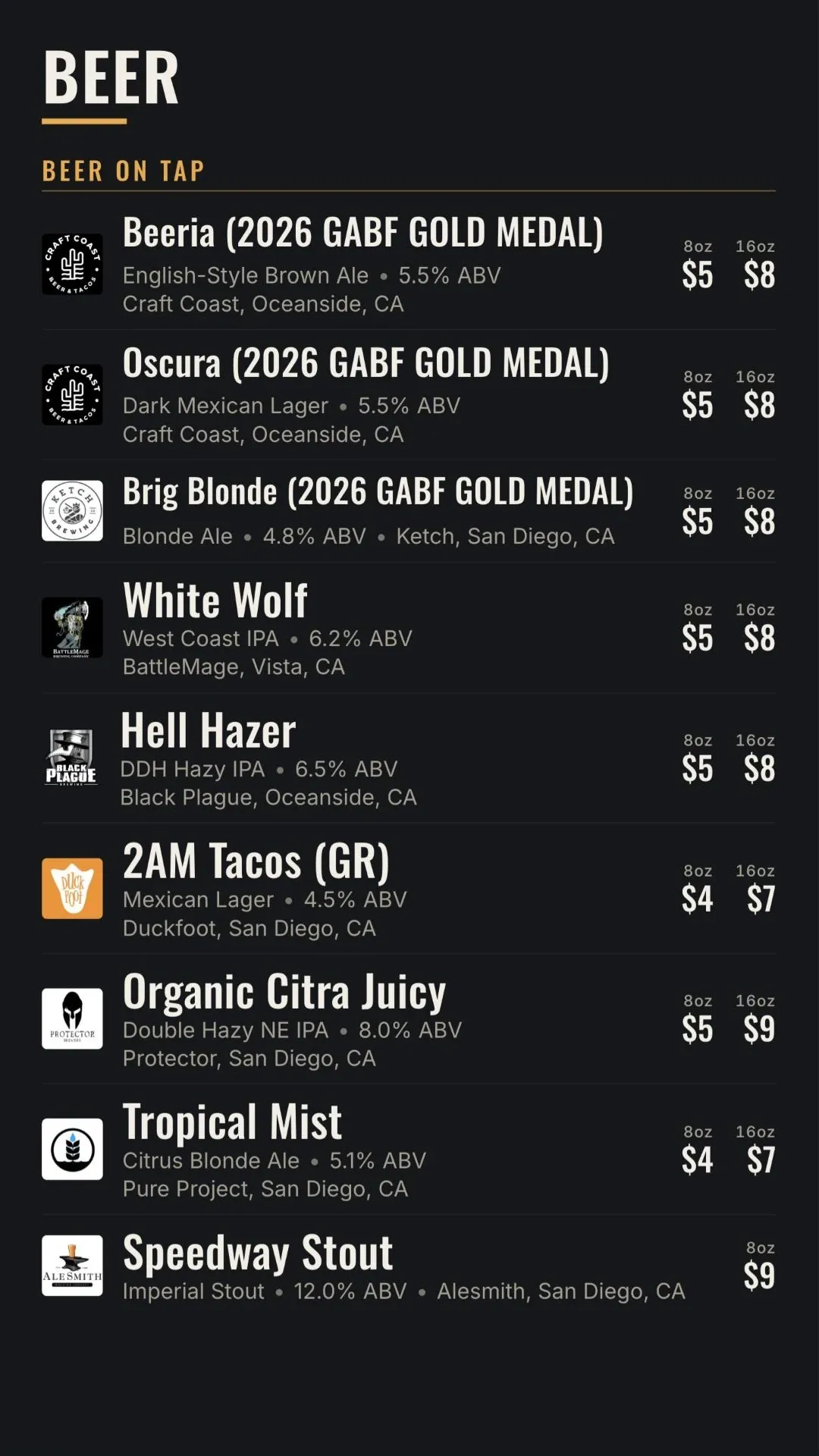
Tall PourMade for vertical
An accent header band, big tap numerals and one or two long columns, with the promo slot at the bottom, at eye level for guests in line.
Food themes
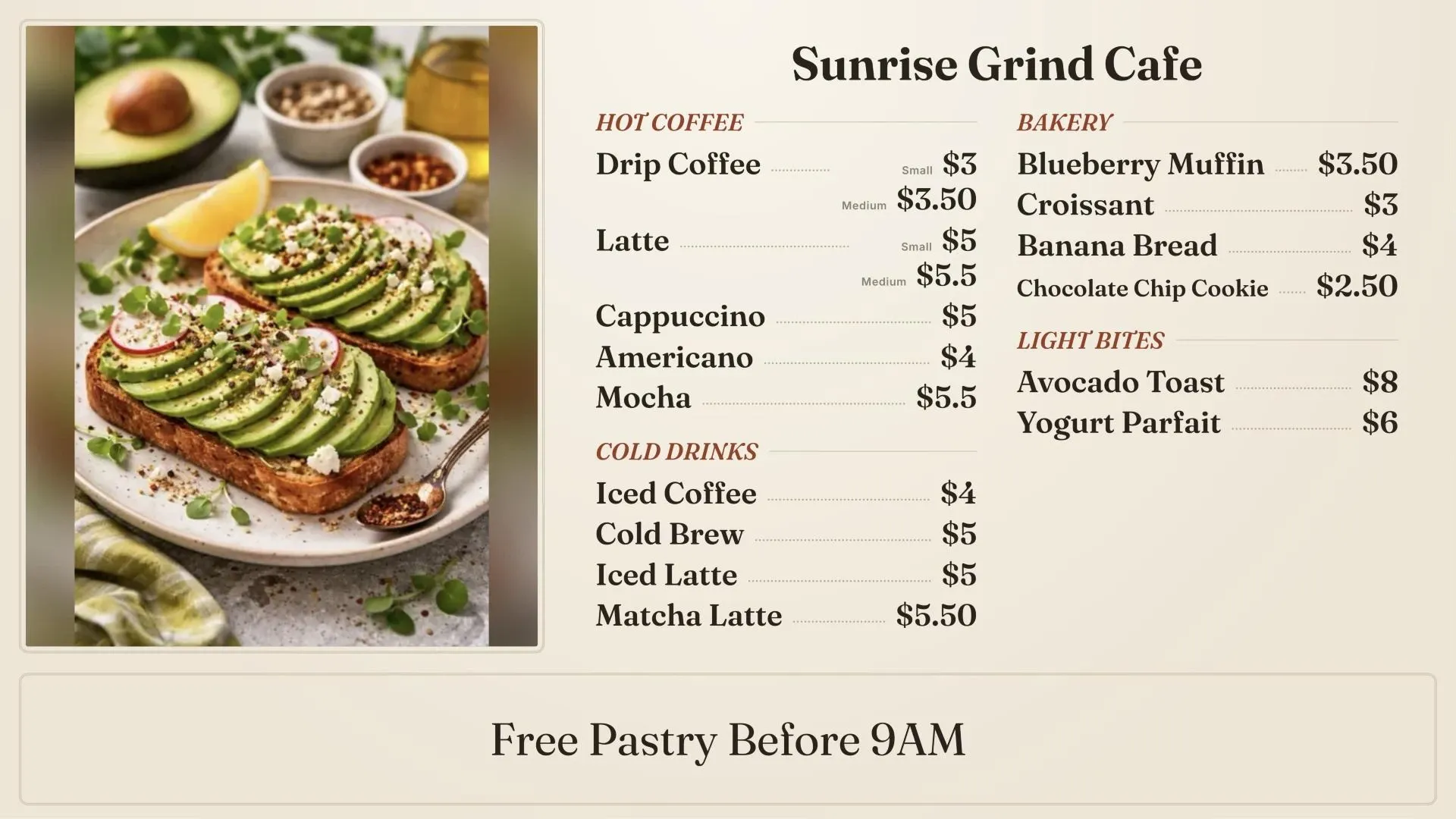
Bistro
Warm paper, serif names and dotted leaders to the price.
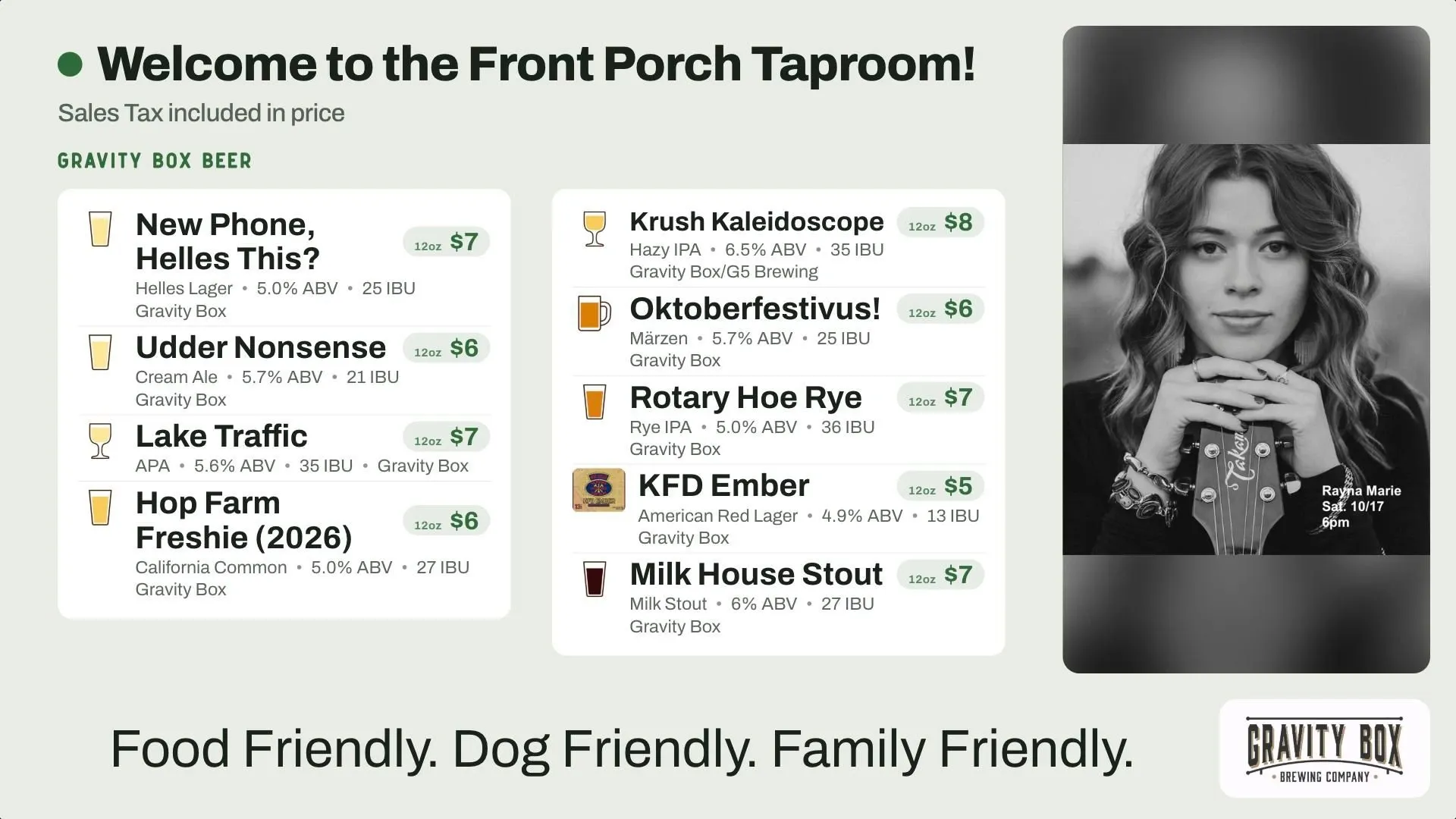
Market
White category panels on a soft green, with prices in tinted pills.
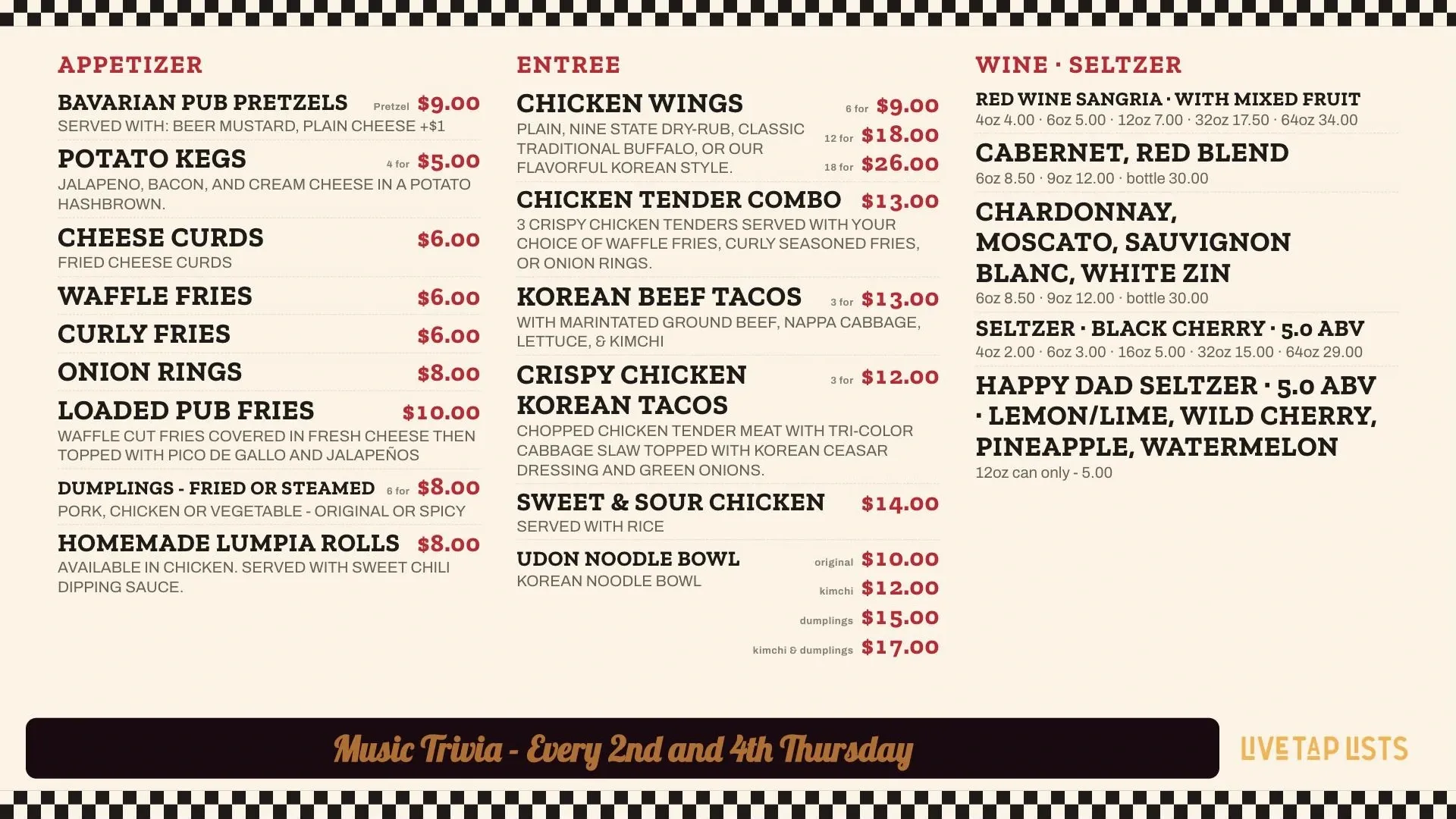
Diner
A 50s diner menu: checkerboard trim, a red script sign for the header and bold red slab-serif category names.
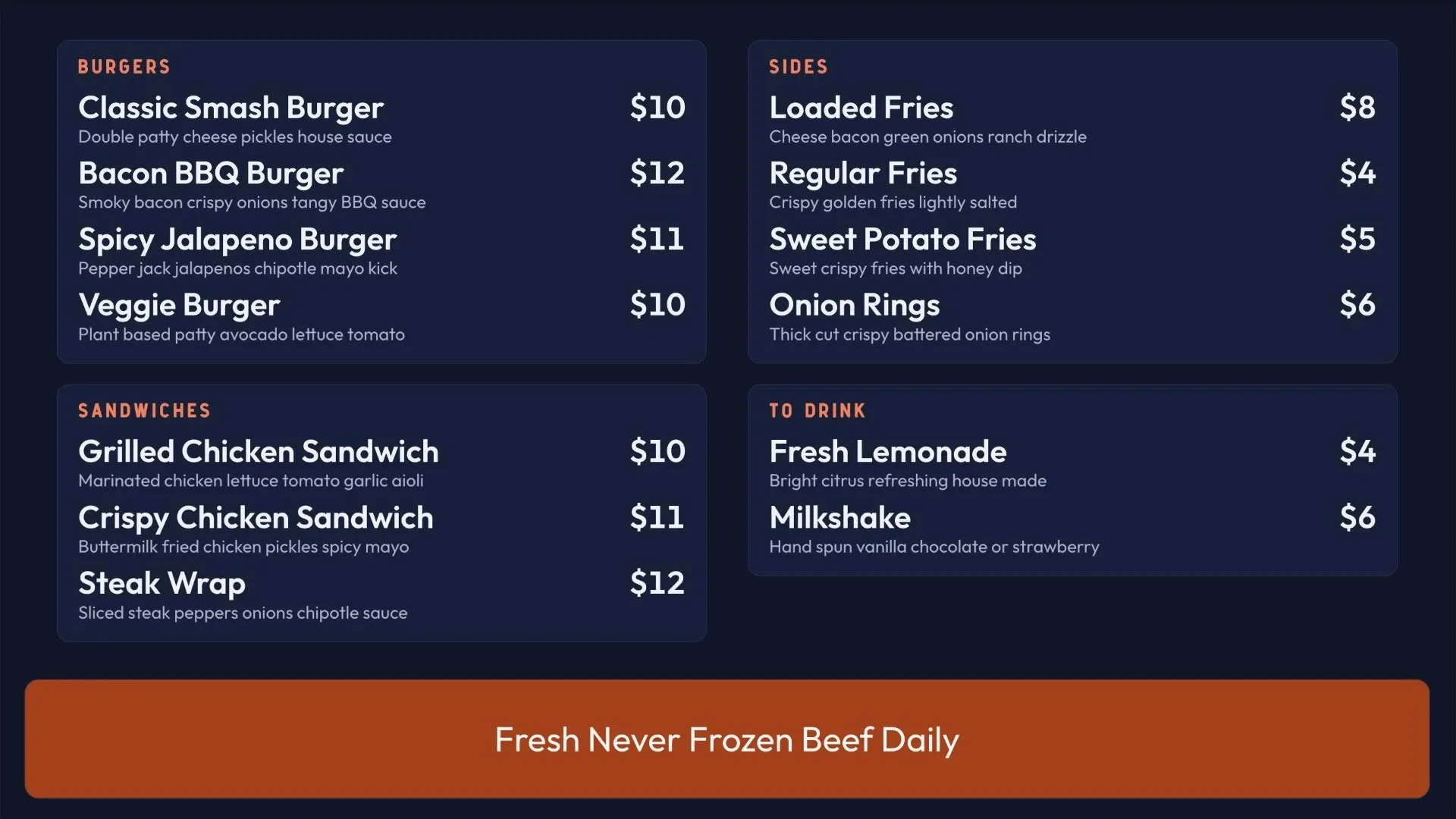
Night Kitchen
Navy panels with a coral accent. Modern and calm on bright TVs.
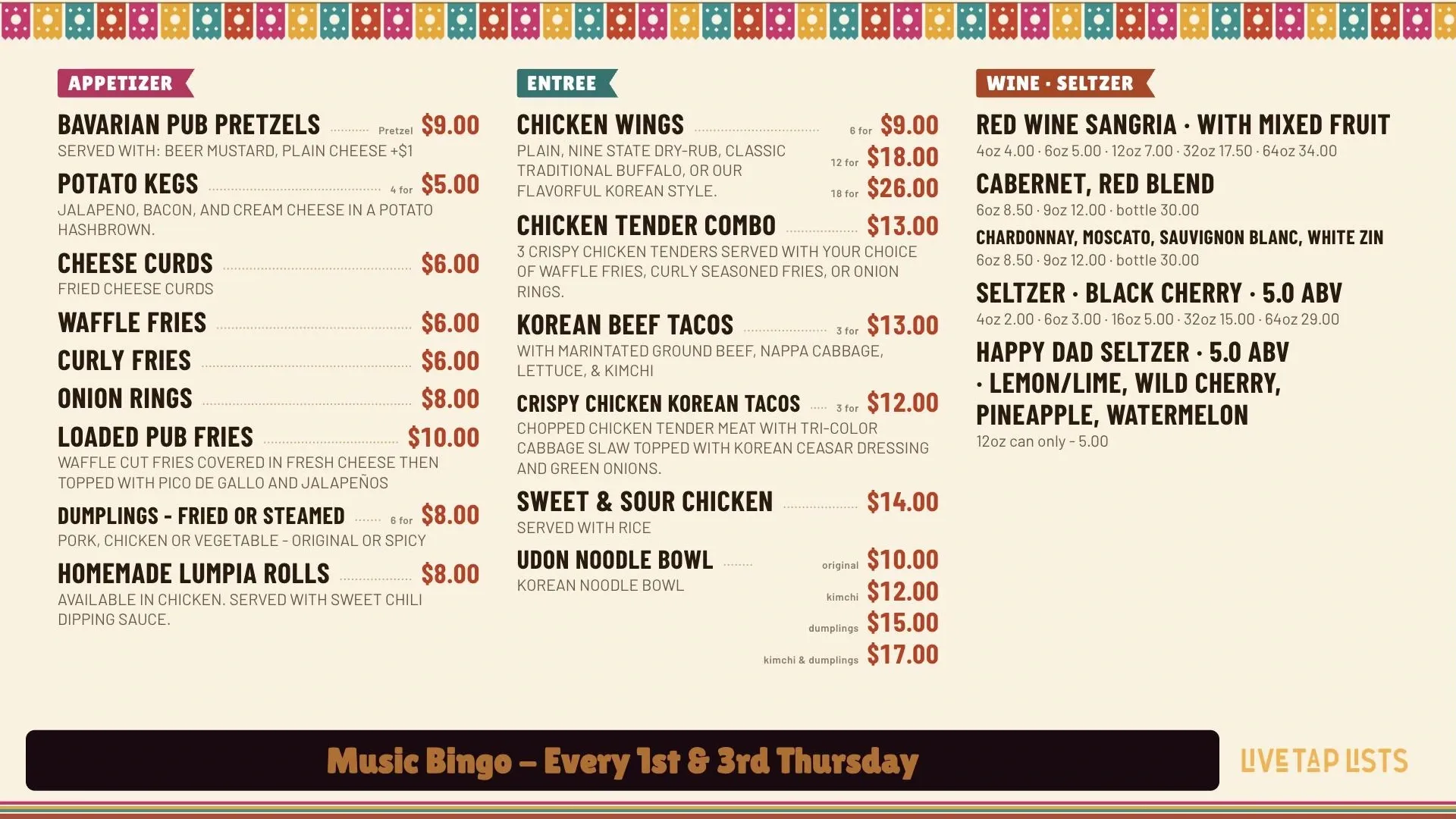
Taquería
Warm cream with a papel picado banner, bold condensed item names, chile-red prices and a different color pennant for each category.
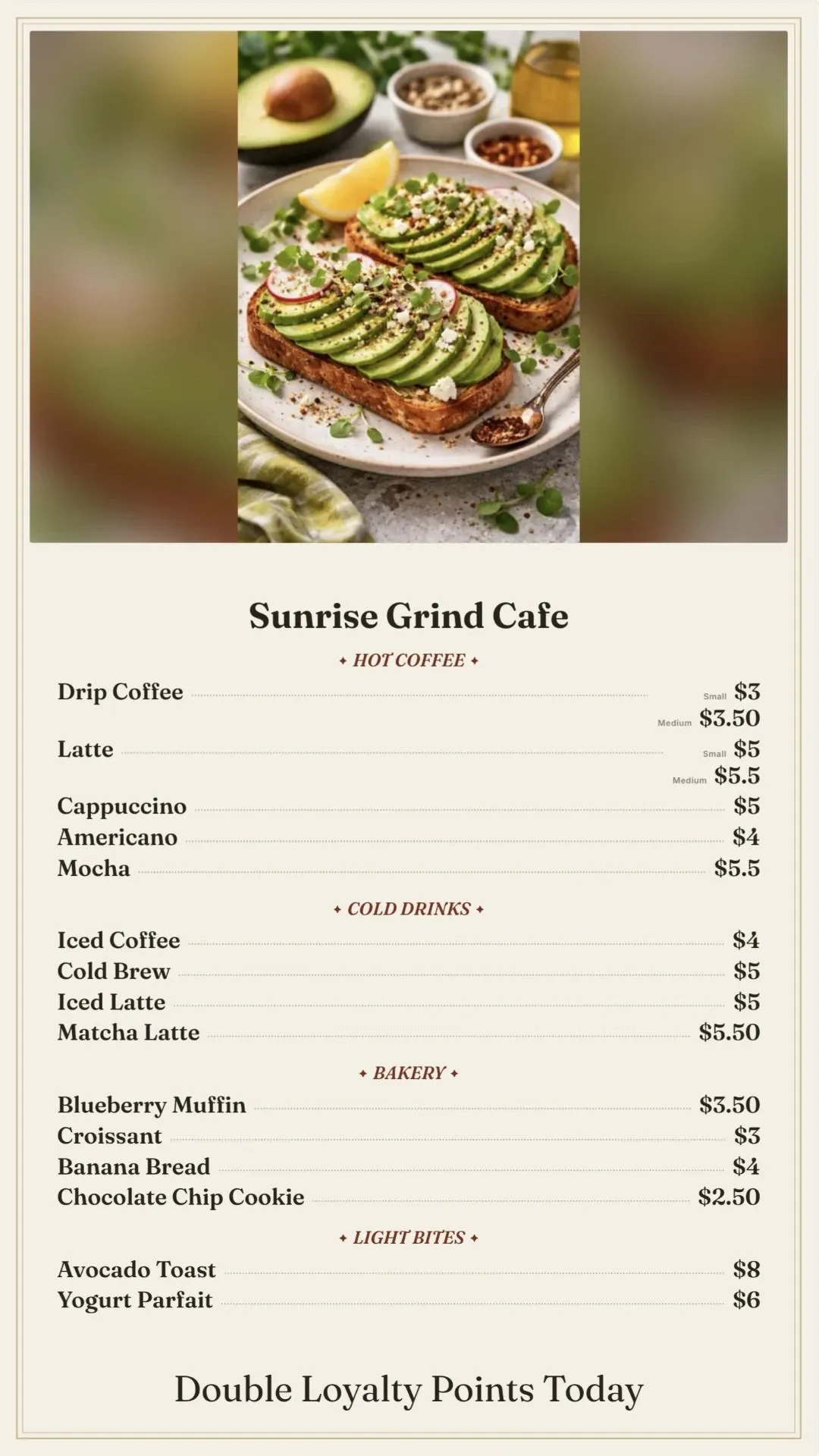
Menu CardMade for vertical
A framed, centered menu card with ornament headings and dotted leaders. Reads like a printed menu standing on an easel.
Every theme has a vertical layout too. Tall Pour and Menu Card are made for vertical screens.
Already have a board? The Design Assistant checks it
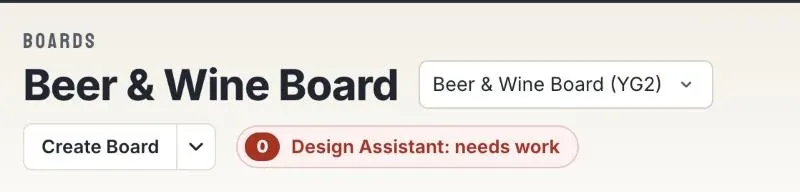
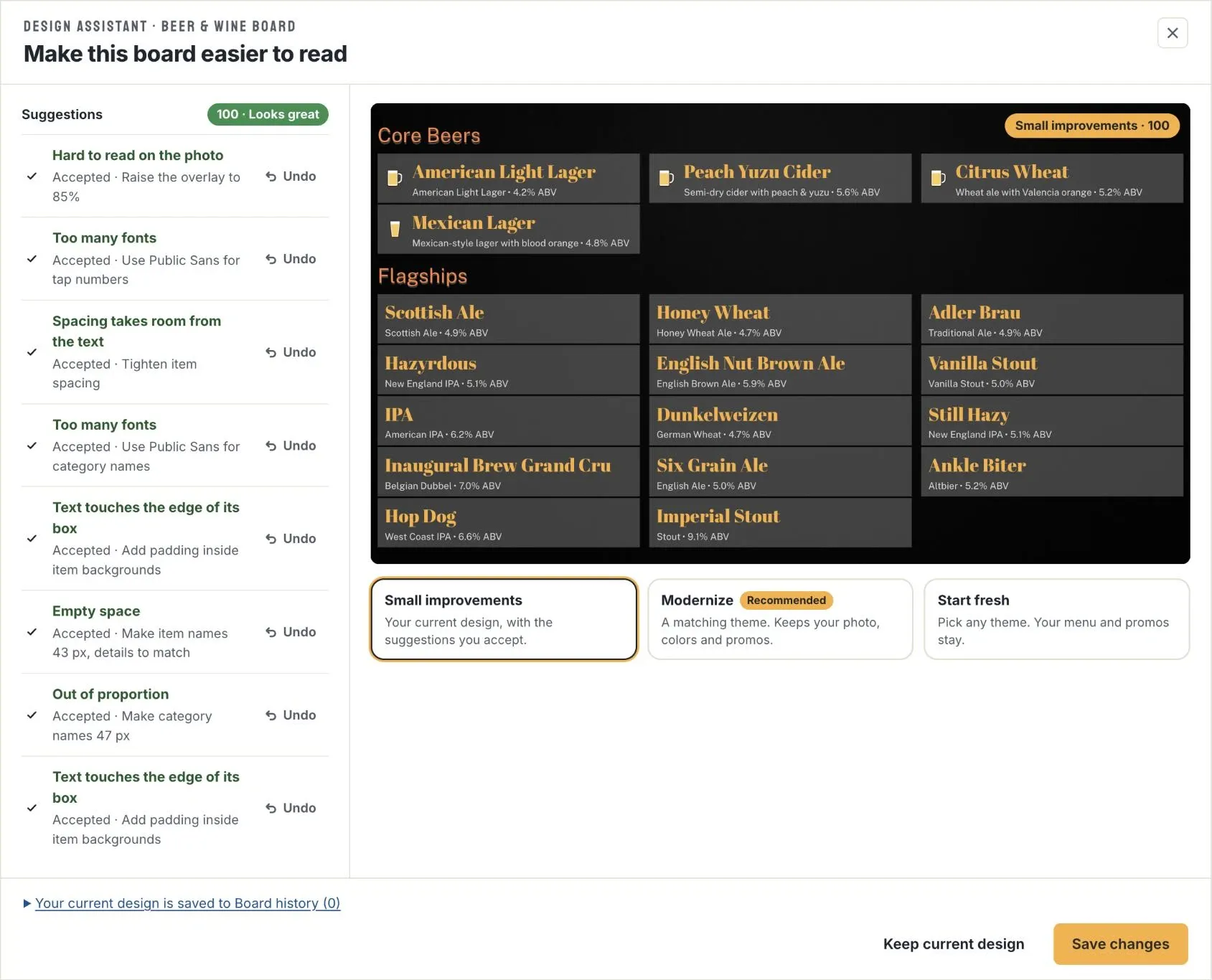
The Design Assistant scores every board out of 100 and shows the score in the board editor. Above 80 reads well across the room; below that, the pill turns amber or red. Open it to see what makes the board hard to read, with a one-setting fix for each issue: bigger item names, more columns, a stronger overlay on a busy photo, a readable font. Accept a suggestion, or all of them at once, see the result on the preview, and undo any you don't like. Nothing changes on your TV until you save. It works on custom designs too, and if you'd rather start over, Modernize and Start fresh switch the board to a theme while keeping your menu and promos. Read about the Design Assistant.
Menu board design FAQ
What font size should a digital menu board use?
It depends on the screen size and how far away guests are. On a 1080p board, keep item names at least 26 px (about 0.65 inches tall on a 55-inch TV), and larger for guests farther away. A common sign-making rule of thumb is about an inch of letter height for every 10 feet of viewing distance; 40 px is about an inch tall on a 55-inch TV.
What size TV do I need for a menu board?
Size the screen to how far away guests are: about 32 inches at 4 feet, 50 inches at 6 feet, and 60 inches at 7½ feet. If the screen is behind the bar, use at least 50 inches.
What colors make a menu board easy to read?
Strong contrast between text and background: light text on a dark background or dark text on a light one, at a contrast ratio of 4.5:1 or more. Use your brand color for accents, and check it against the background before using it for text. Over a photo, use a strong overlay.
How many columns should a menu board have?
On a landscape TV, two to four, depending on how many items you have. On a vertical TV, one or two. If item names get too small, split the menu over two pages or screens instead of adding more columns.
Should I put descriptions on my menu board?
Keep them short: a line with the style, ABV, IBU or brewery helps guests choose. Long descriptions shrink everything else on the board, so put them on your website or QR menu instead.
Is a vertical or horizontal TV better for a menu board?
Horizontal suits a wall or back bar with two to four columns. Vertical suits a single screen beside the taps or at the register, with one or two long columns. Pick the screen direction before you design the board.
Can Live Tap Lists fix a menu board that is hard to read?
Yes. The Design Assistant scores every board out of 100, lists what makes it hard to read and suggests a fix for each issue that you can accept or undo. Nothing changes on your TV until you save. You can also switch the board to one of the themes, which size the text to fit automatically.
I use another menu board or signage tool. Can I switch to Live Tap Lists?
Yes. Import your items from a spreadsheet or sync them from Square, Clover, Toast, Genius or GoTab, pick a theme, and play the board on any TV with an Amazon Fire TV device. You can try it free for two weeks.
More: Digital menu boards · Getting started guide · Menu tips
Get a menu board that reads well, automatically
Pick a theme, import your menu, and put it on your TV. Free for two weeks.