
Guide
Getting started with Live Tap Lists
Add your drinks once, then put your menu on your TVs, in print, on your website, and behind a QR code. Here is how, step by step.
Don’t feel like reading?
Watch the 8-minute demo, or jump to a step:
Step 1
Add your drinks
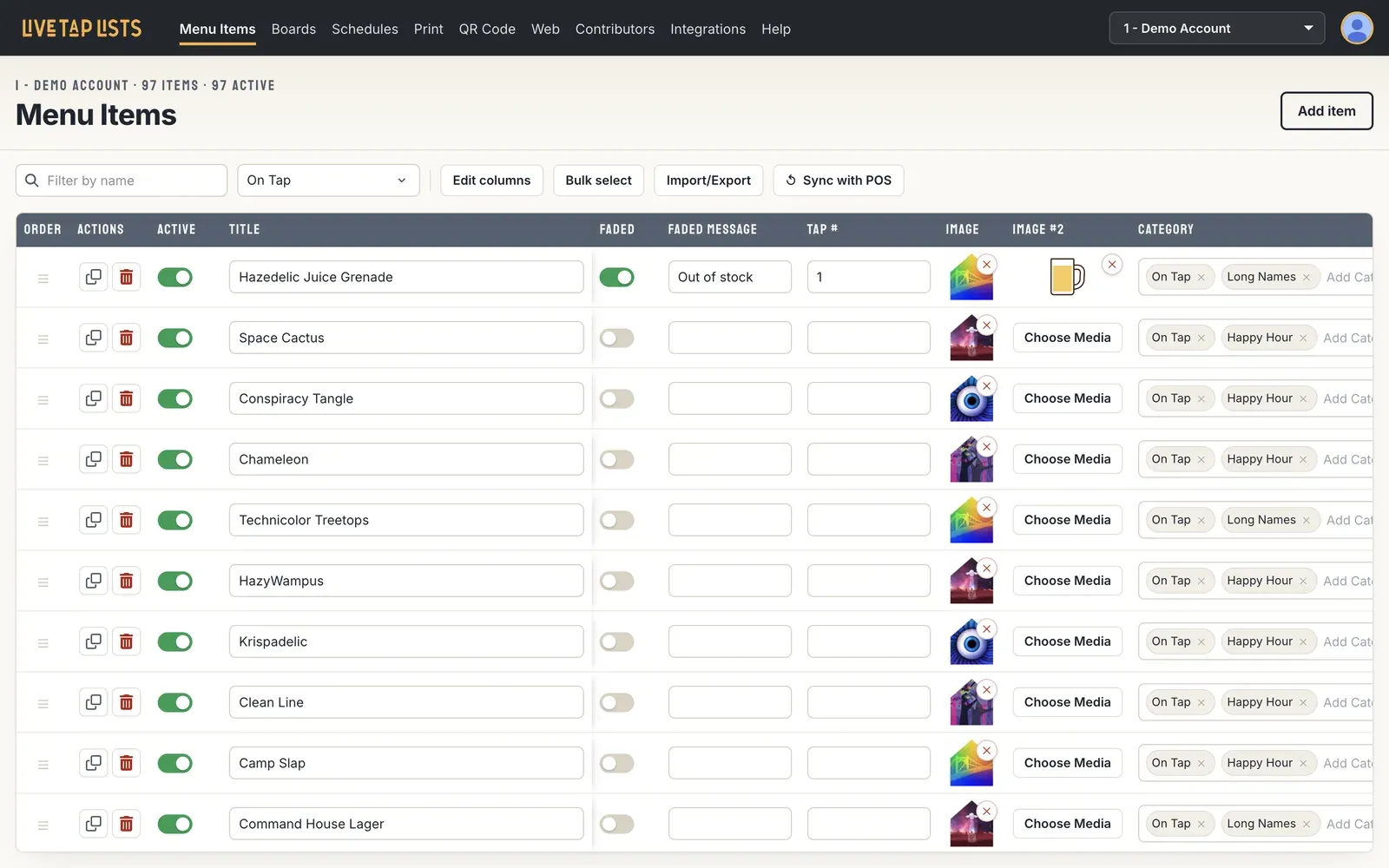
Open the Menu Items page in your dashboard. For each drink, you can set:
- Order
- Active
- Tap handle number
- Image
- Title
- Category
- Short description
- ABV
- IBU
- Sizes and prices
- Long description
- Brewery
Step 2
Design your menu board
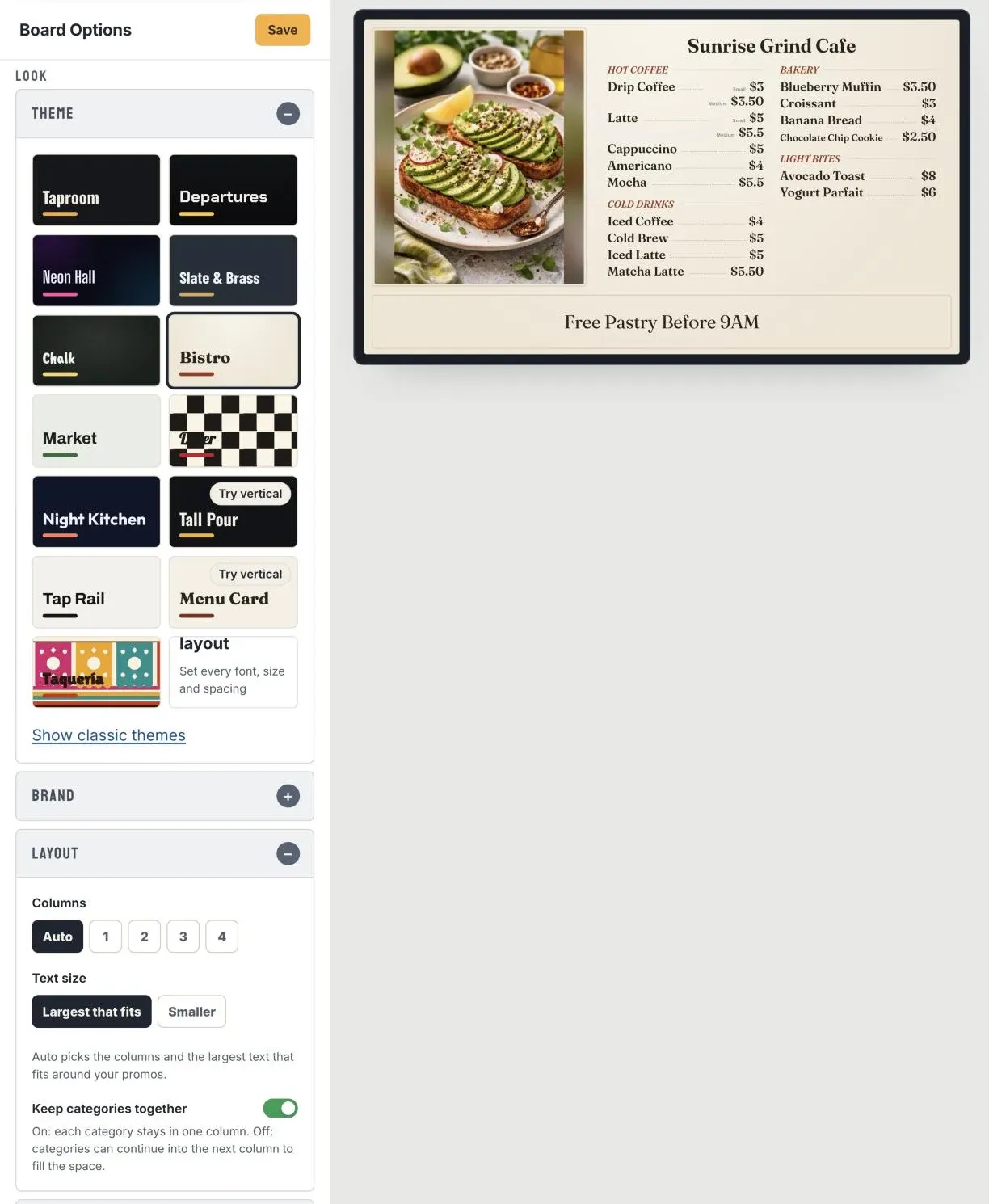
Open the Boards page in your dashboard. New boards start on the Taproom theme, which sizes the text to fit your screen and leaves room for your promos, so you mostly choose what goes on the board. The preview updates as you go.
- Pick a look. Under Look, set the screen orientation (Landscape, Turned right, or Turned left), then pick a theme. There are themes for drinks and themes for food, and Tall Pour and Menu Card are made for vertical TVs. Add your brand color if you like.
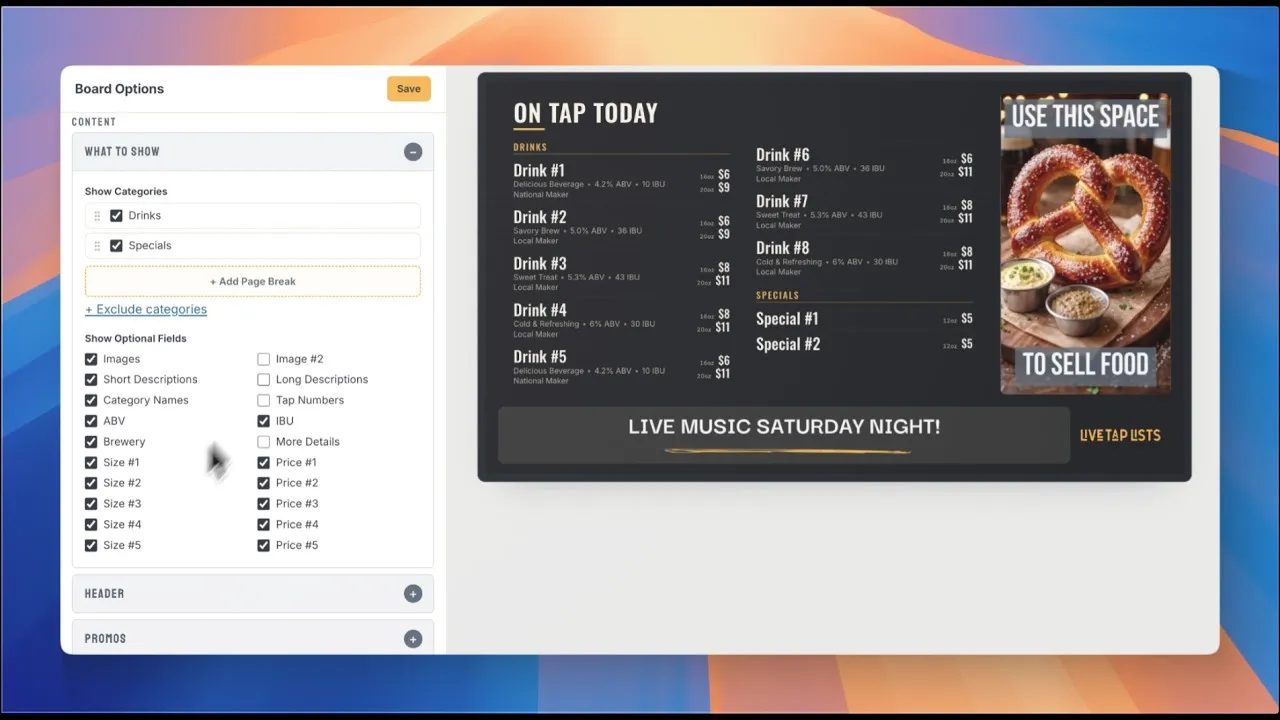
- Choose what's on the board. Under Content, open What to show to pick and order the categories on this board and the details shown with each item.
- Add promos. In Promos, choose your promo space (Side, Banner, or Both) and add slides, plus full screen slides if you want them.
- Put it on your TV. Click Save, then enter the TV code shown under the board name in the Fire TV app (see the next step).
The Design Assistant button next to the board name scores how well your board reads across the room. Open it for suggested fixes you can accept one at a time.
Want to set every font, size, and spacing yourself? Pick Custom layout in the theme list. It keeps your theme's look as a starting point, and your previous design is saved to Board history.
Open Boards →Meet the board themes →The Design Assistant →Menu board design tips →
Step 3
Put it on your TVs
Your digital menu board is always live at its own link. Find it in your dashboard by clicking "Open Live Menu Board."
Show it on a TV with an Amazon Fire TV or Fire TV Stick, by casting from a nearby computer, or by plugging a computer into the TV over HDMI.
Amazon Fire TV or Fire TV Stick Recommended
- Download the "Live Tap Lists" app on your Fire TV.
- Open the app and enter your TV code from your dashboard.
- Your menu displays and updates live when you make changes.
Chromecast
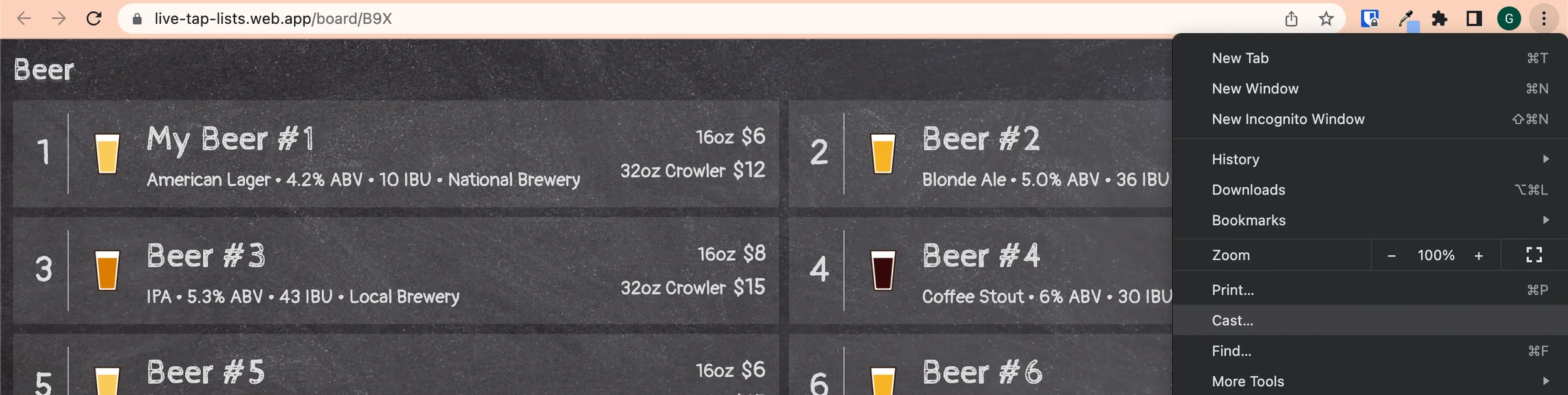
- Plug your Chromecast into your TV and connect it and your computer to the same Wi-Fi network.
- Open your menu board in Google Chrome, click the share icon, and choose Cast.
- Select your Chromecast.
Computer over HDMI
- Connect a computer to your TV with an HDMI cable.
- Open your live menu board link in the browser and make it full screen.
Step 4
Print your tap list
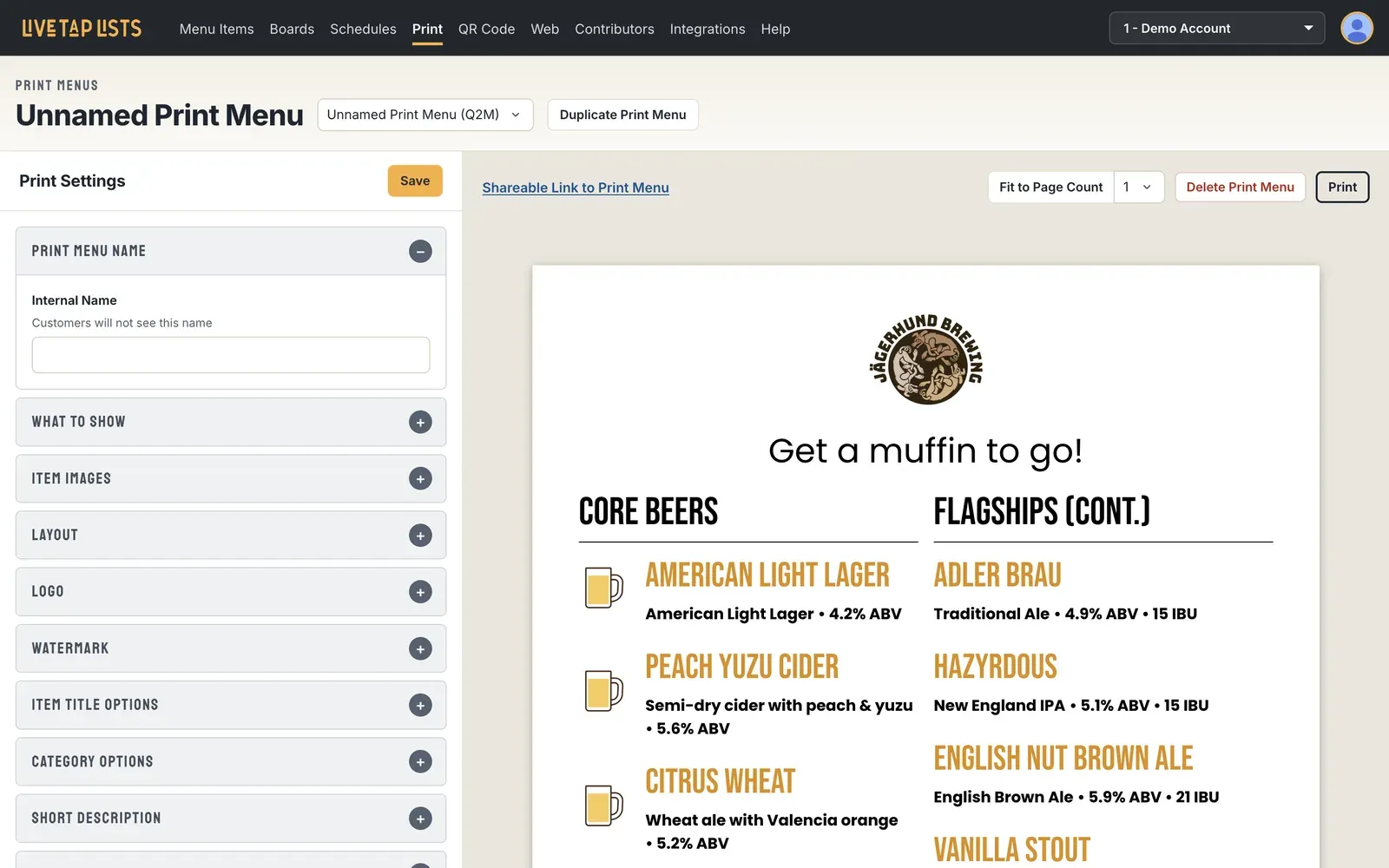
Visit the Print page to print a fresh copy of your live tap list on Letter, Legal, or A4 paper, or as half-sheets. Font, logo, text size, text color, and column layout are customizable, and your settings are saved for the next time you print.
Step 5
Embed it on your website
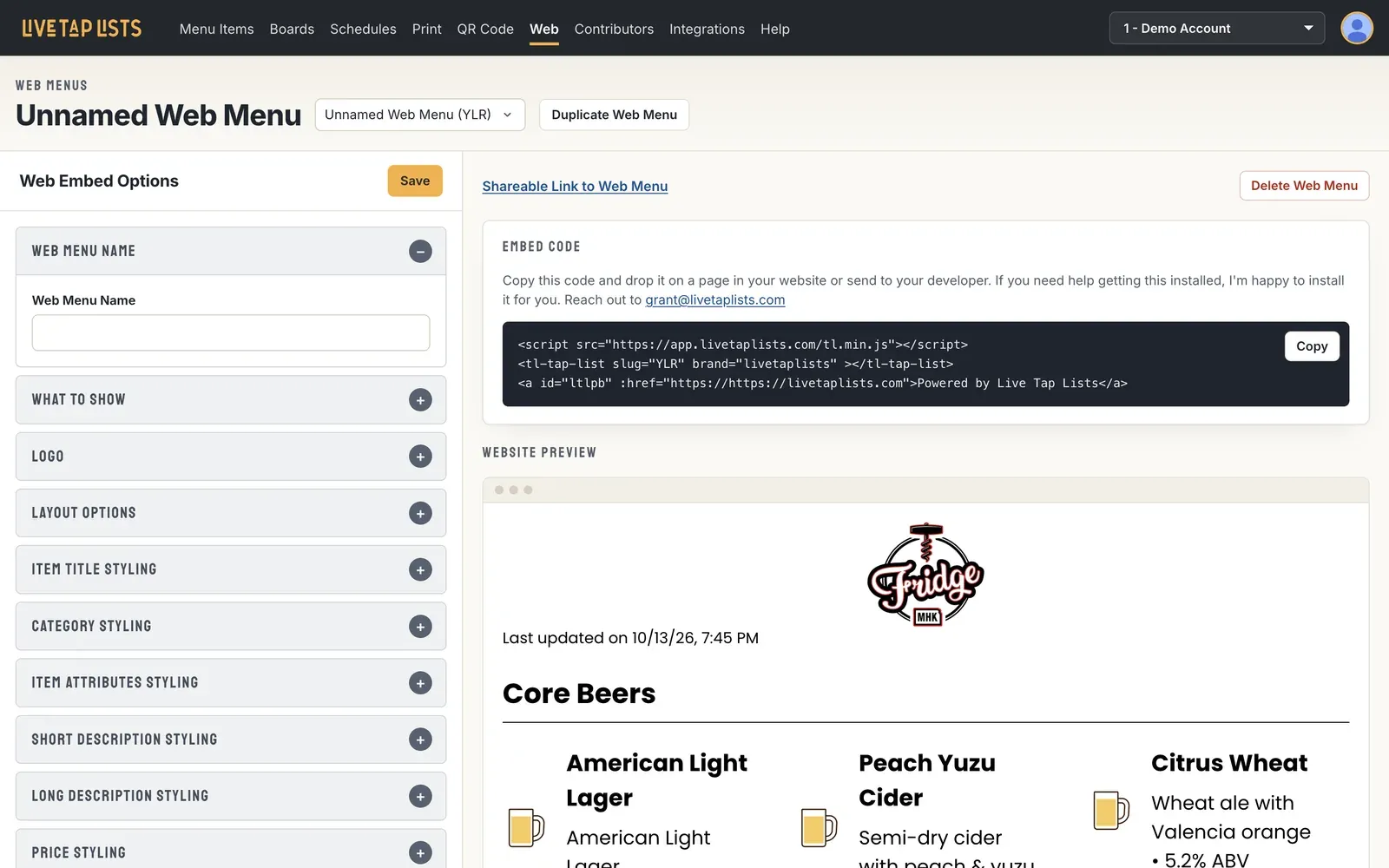
Visit the Web page to get your embed code. Copy it into your website or send it to your developer. If you need help getting it installed, we are happy to install it for you.
Step 6
Download your QR code
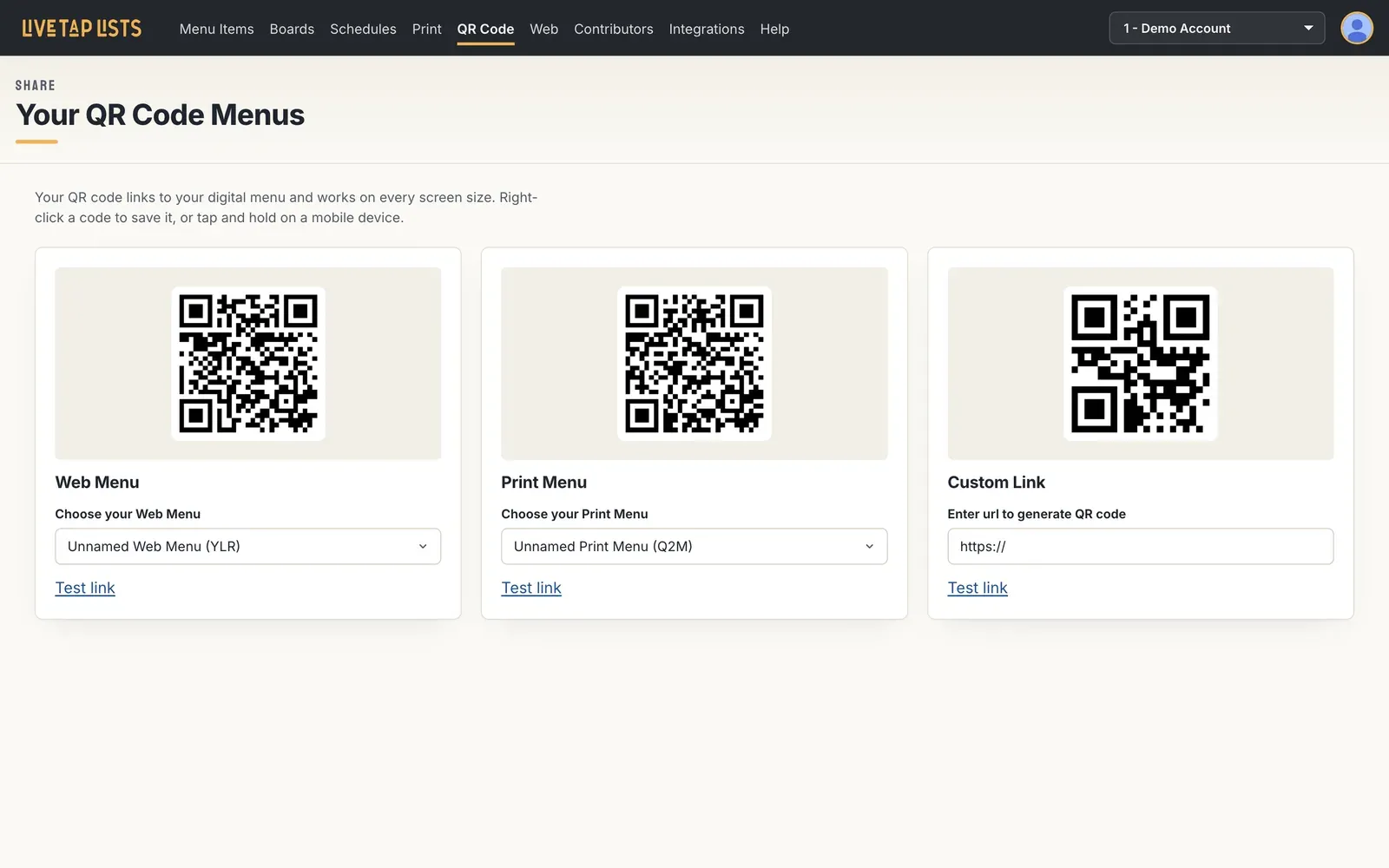
Your QR code links to your live menu, which displays correctly on every screen size, so it is perfect for a quick mobile scan. Download your unique code from the QR Code page.
Need a hand getting set up?
Email us or book a demo, and we’ll walk you through it.