


Toast integration
Connect Toast to Live Tap Lists to sync menu items, prices, and 86'd status to your digital, print, website, and QR menus, with real-time webhooks.
- Seconds86'd items and menu changes with Toast webhooks.
- Your credentialsConnect with Toast Standard API access. No OAuth app to approve.
- Custom attributesUse Toast attributes like ABV on your menus.
- You stay in controlOverride any field and it stops syncing for that item.
Live Tap Lists integrates with Toast POS. Connect your Toast restaurant to Live Tap Lists to sync your menu items and keep every menu current, from the TVs in your taproom to your website.
How does the Toast integration work?
Live Tap Lists connects to your Toast restaurant with API credentials you create in Toast Web. It reads your Toast menus, including menu groups, sizes, prices, descriptions, and images, and checks stock so 86’d and out-of-stock items come off your menus.
Creating the credentials takes a few manual steps in Toast Web, and your Toast plan and user permissions need to allow it. Follow our step-by-step guide: How to create Toast API credentials for Live Tap Lists.
When you add the optional Stock and Menus webhooks in Toast Web, Toast tells Live Tap Lists the moment something changes, so 86’d items and menu updates show up in seconds. Without webhooks, Live Tap Lists syncs with Toast automatically every 24 hours.
Watch: how to connect with Toast
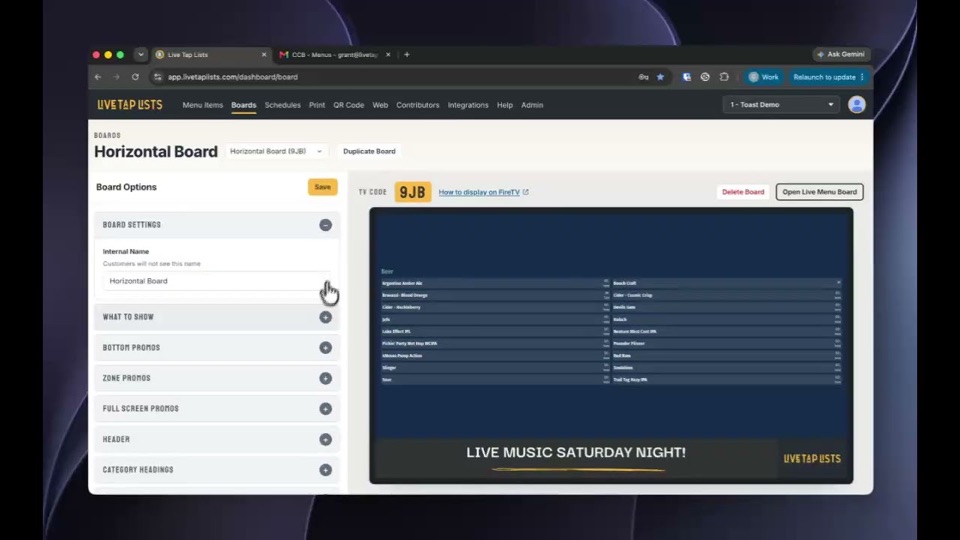
Use your Toast attributes on your menus
Beyond the basics, Live Tap Lists brings in extra Toast details such as PLU, SKU, calories, sales category, brand, and your own custom attributes. If you track ABV as a custom attribute in Toast, you can show it on your menus.
Setup
- In Toast Web, create Standard API access credentials (a client ID and client secret) for your restaurant. Follow our step-by-step guide.
- In Live Tap Lists, open the Integrations page, connect Toast with those credentials, and choose your location.
- Optional, about 2 minutes: in Toast Web under Integrations › Toast API access › Manage credentials, add two webhooks, Stock and Menus, using the URL and names Live Tap Lists shows you, then paste each webhook's secret key into Live Tap Lists.
- Choose which Toast fields sync for each item, add any extra details, and set new items to active so they appear on your menus.
How POS syncing works
These behaviors are the same for every Live Tap Lists POS integration.
- Per-field control. For each item you choose which fields sync from your POS. Overriding a field in Live Tap Lists stops that field from syncing.
- New items arrive inactive. New POS items come in as inactive, so nothing appears on a menu by accident.
- Disconnecting keeps your menu. All menu items stay in Live Tap Lists. Reconnecting pulls the full catalog again.
- Need another POS? Request your POS.
Toast integration FAQ
What does the Toast integration do?
It syncs your Toast menu items into Live Tap Lists, so your digital menu boards, print menus, website menus, and QR menus are built from your Toast data and stay current.
Which fields sync from Toast?
Item name, availability (86'd and out-of-stock items), categories from your menu groups and item tags, sizes and prices, descriptions, and images. Extra Toast attributes such as PLU, SKU, calories, sales category, brand, and your custom attributes like ABV are also available.
How fast do 86'd items update?
With the optional Toast webhooks set up, 86'd items and menu changes show up in Live Tap Lists in seconds. Setting up the two webhooks in Toast Web takes about 2 minutes. Without webhooks, Live Tap Lists syncs with Toast every 24 hours.
How do I connect Toast?
Create Standard API access credentials (a client ID and client secret) in Toast Web, then connect Toast from the Integrations page in Live Tap Lists and choose your location. Your locations need Toast RMS Essentials or higher, and your Toast user needs the Manage Integrations permission. Our guide, How to create Toast API credentials, walks through every step.
Do items hidden in Toast show up on my menus?
No. Items that are hidden everywhere in Toast are not imported into Live Tap Lists.
What if I have values in Toast that I do not want on my menus?
You can choose which fields sync from Toast for each item. If you override a field in Live Tap Lists, it stops syncing from Toast for that item.
How do I stop getting updates from Toast but keep my menu items?
Disconnect Toast on the Integrations page. Your menu items stay in your Live Tap Lists account.