Introducing the Design Assistant: Make Any Menu Board Easier to Read
A menu board only sells what guests can read. From behind the bar, a board can look fine while the guest at the back of the room is squinting at beer names that shrank to fit one more tap.
The Design Assistant fixes that. It gives every board in Live Tap Lists a readability score, shows you exactly what’s holding the score down, and fixes it in a click. It works on the board you already have, including fully custom designs.
Here’s how it works, using one real beer board that starts at a score of 0 and ends at 100.
1. Check your score
Open a board in the editor and you’ll see the Design Assistant pill next to the board name, with a score out of 100. This Beer & Wine Board scores a 0. It needs work.
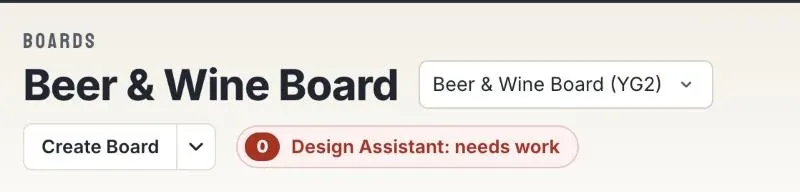
The color tells you where you stand at a glance:
- Green, “Looks great” at 80 or above. The board reads well across the room.
- Amber, “Could improve” from 60 to 79.
- Red, “Needs work” under 60.
The score comes from the board as it actually renders on the TV, with your real items, fonts, colors, background and promos. If a board needs work, your dashboard lets you know too, with a Fix my board button that takes you straight there.
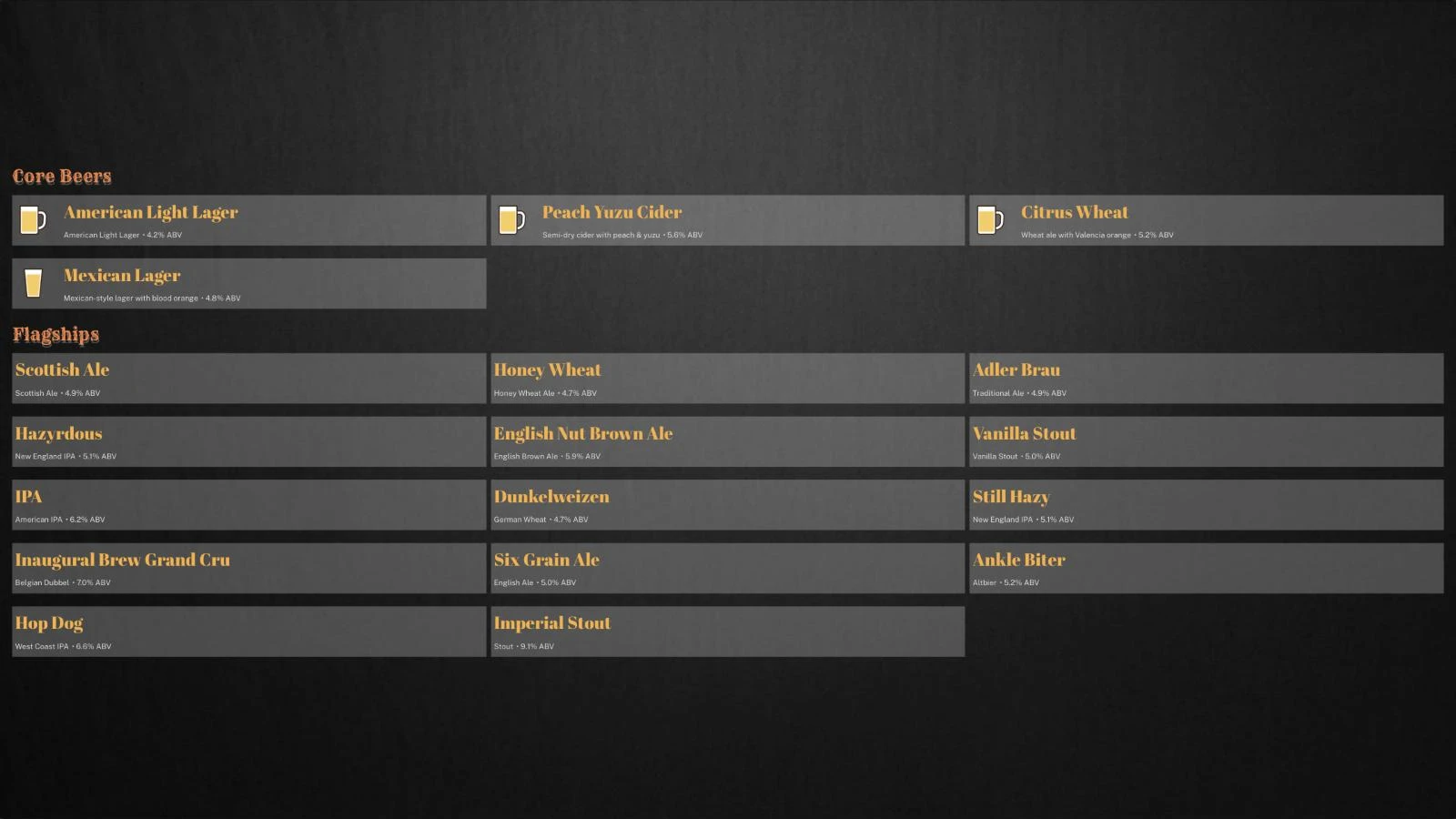
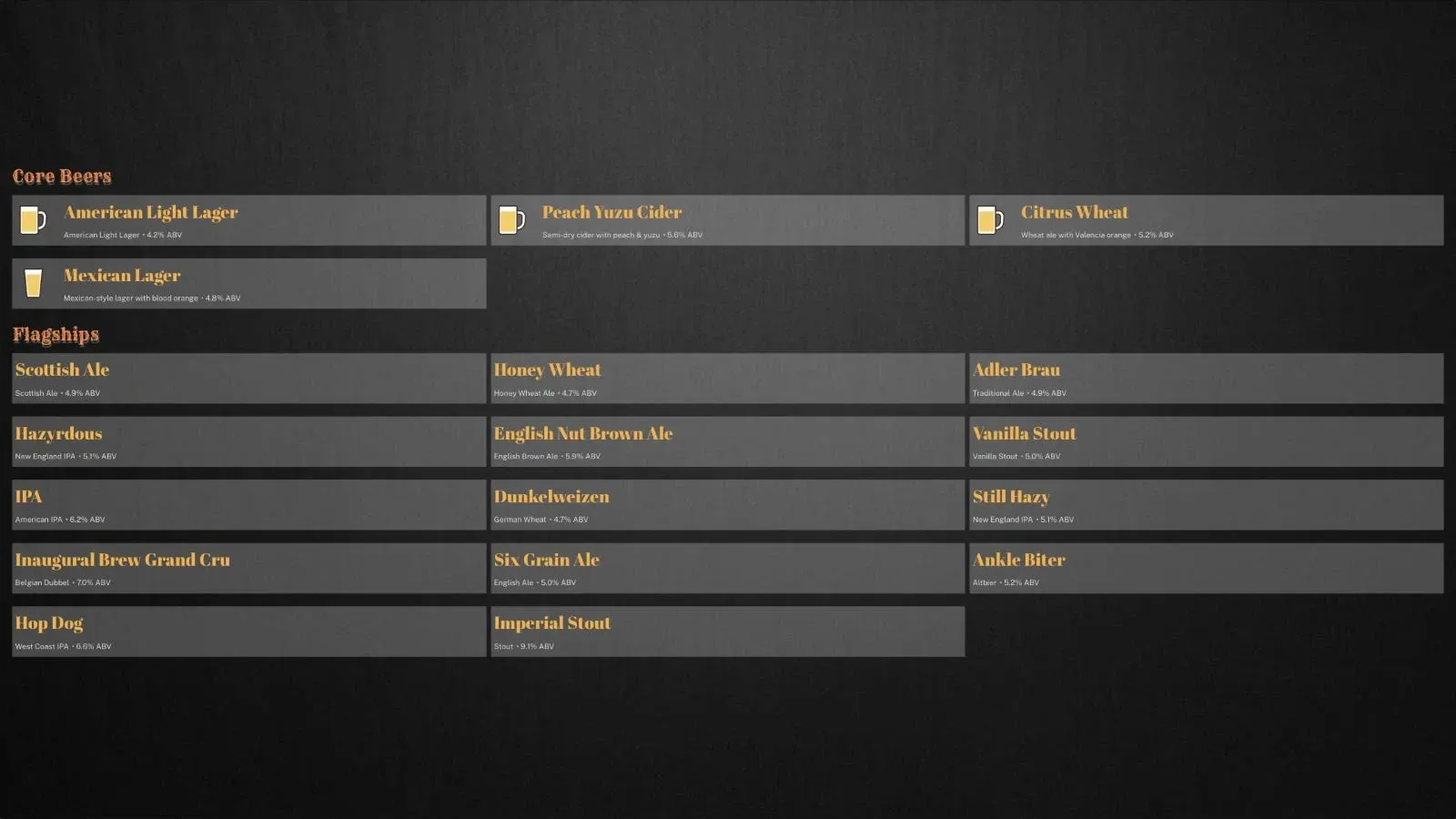
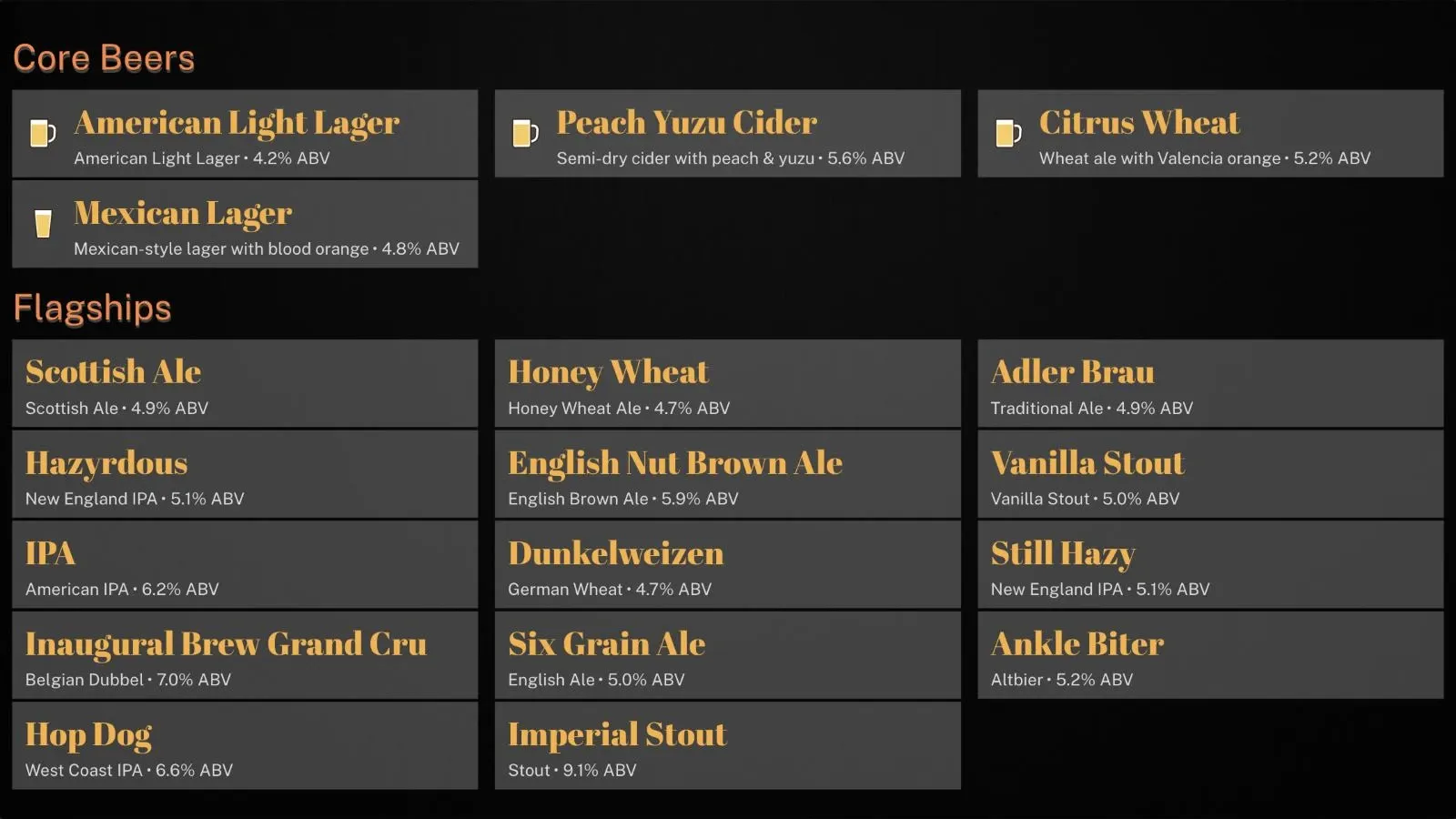
Here’s why this board scores a 0. The beer names are small, the style and ABV lines are too tiny to read, and there’s a wide empty band across the top and bottom.
2. See what’s holding it back
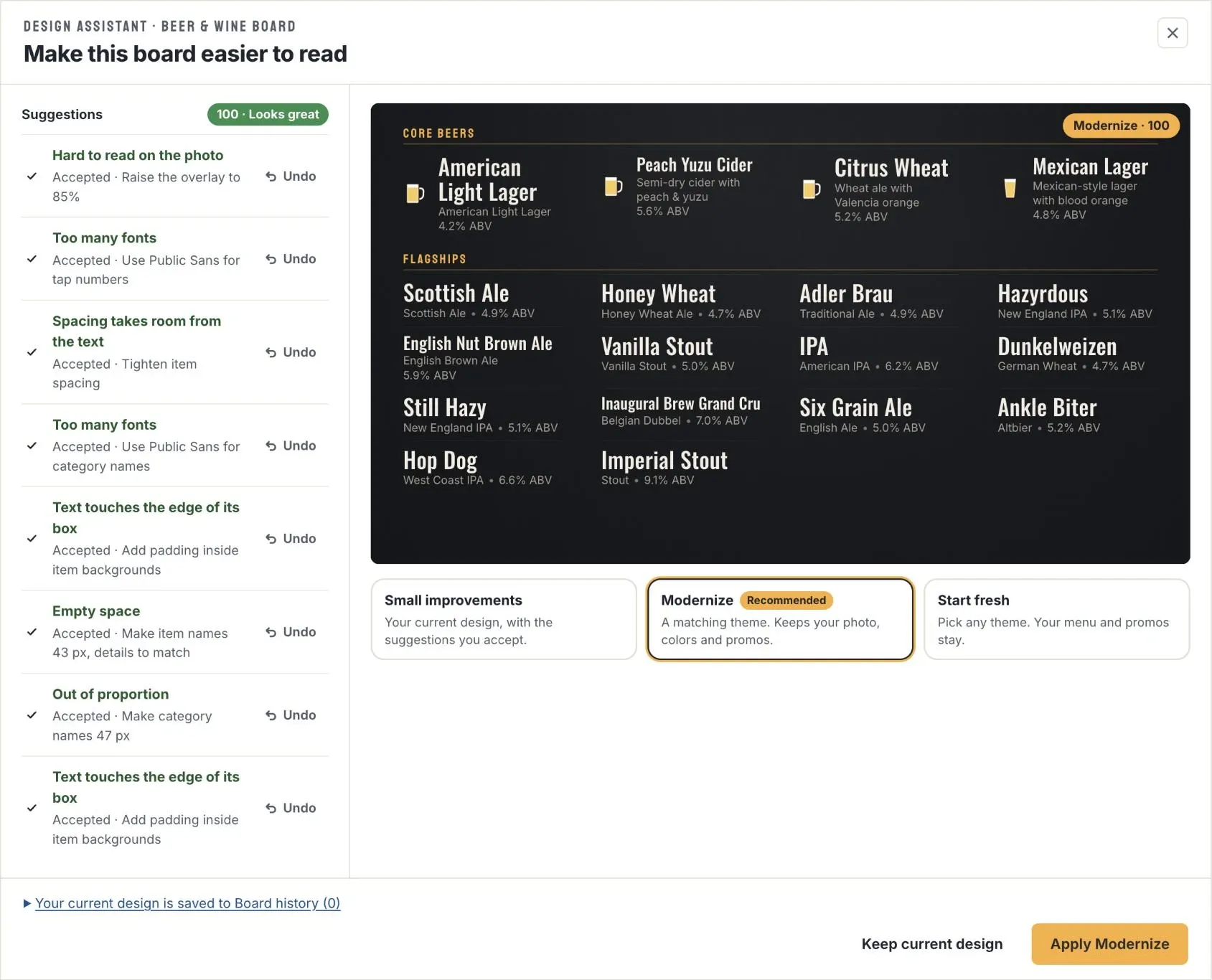
Click the pill to open the Design Assistant. On the left, under Suggestions, it lists every problem it found, most important first. Each one names the problem in plain words and the exact change that fixes it.
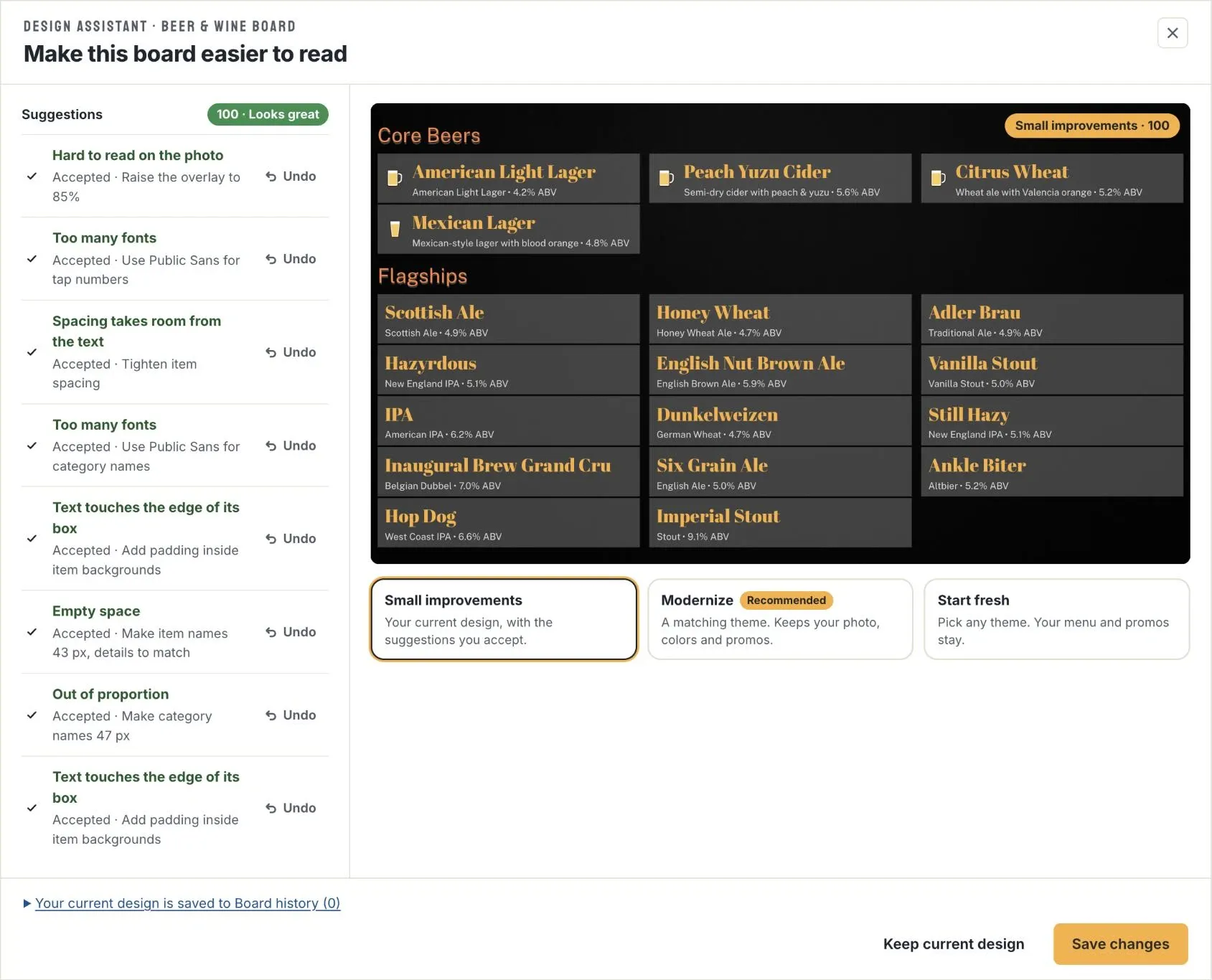
For this board, it found eight:
- Hard to read on the photo: raise the overlay to 85%.
- Too many fonts: use Public Sans for tap numbers and category names.
- Spacing takes room from the text: tighten item spacing.
- Text touches the edge of its box: add padding inside item backgrounds.
- Empty space: make item names 43 px.
- Out of proportion: make category names 47 px.
Every fix changes one setting, so you’re never guessing which of a hundred options to touch. Behind the scenes, the Design Assistant checks what matters most on a TV across a room:
- Text size. Item names smaller than 26 px on a 1080p board (about 0.65 inches tall on a 55-inch TV).
- Contrast. Text that doesn’t reach a 4.5:1 contrast ratio with what’s behind it, including text on a photo and promo text.
- Fonts. More than two font families, or a script or decorative font on item names.
- Proportion. A heading that towers over the items, or category names smaller than item names.
- Layout. Uneven columns, mixed alignment, big empty areas, boxes that run together, and spacing that takes room from the text.
- Promos. Promo spaces that crowd the list so much that item names get too small.
Our menu board design guide explains each of these, and why they matter, whatever software you use.
3. Accept the fixes and watch your score climb
When the Design Assistant opens, it has already accepted the suggestions for you and shows the result in the preview, with the new score. You stay in control:
- Undo any suggestion you don’t like, and the preview and score update right away.
- Accept all brings back everything you’ve undone.
- Optional changes, like hiding a promo space to make more room, are offered but never accepted for you. Your promo slides are kept either way.
- If your board shows long descriptions, a checkbox lets you hide them for bigger text.
With all eight suggestions accepted, our board goes from 0 to 100, “Looks great.” It’s still the same design, just much easier to read. The beer names are bigger, the category names use one clean font, and the list fills the screen.
4. Modernize for a bigger upgrade
Small fixes get your score up. If you want the board to look new too, pick one of the three options under the preview:
- Small improvements: your current design, with the suggestions you accept. Your custom layout stays custom.
- Modernize (recommended): a matching theme that keeps your photo, colors and promos.
- Start fresh: pick any theme you like. Your menu and promos stay.
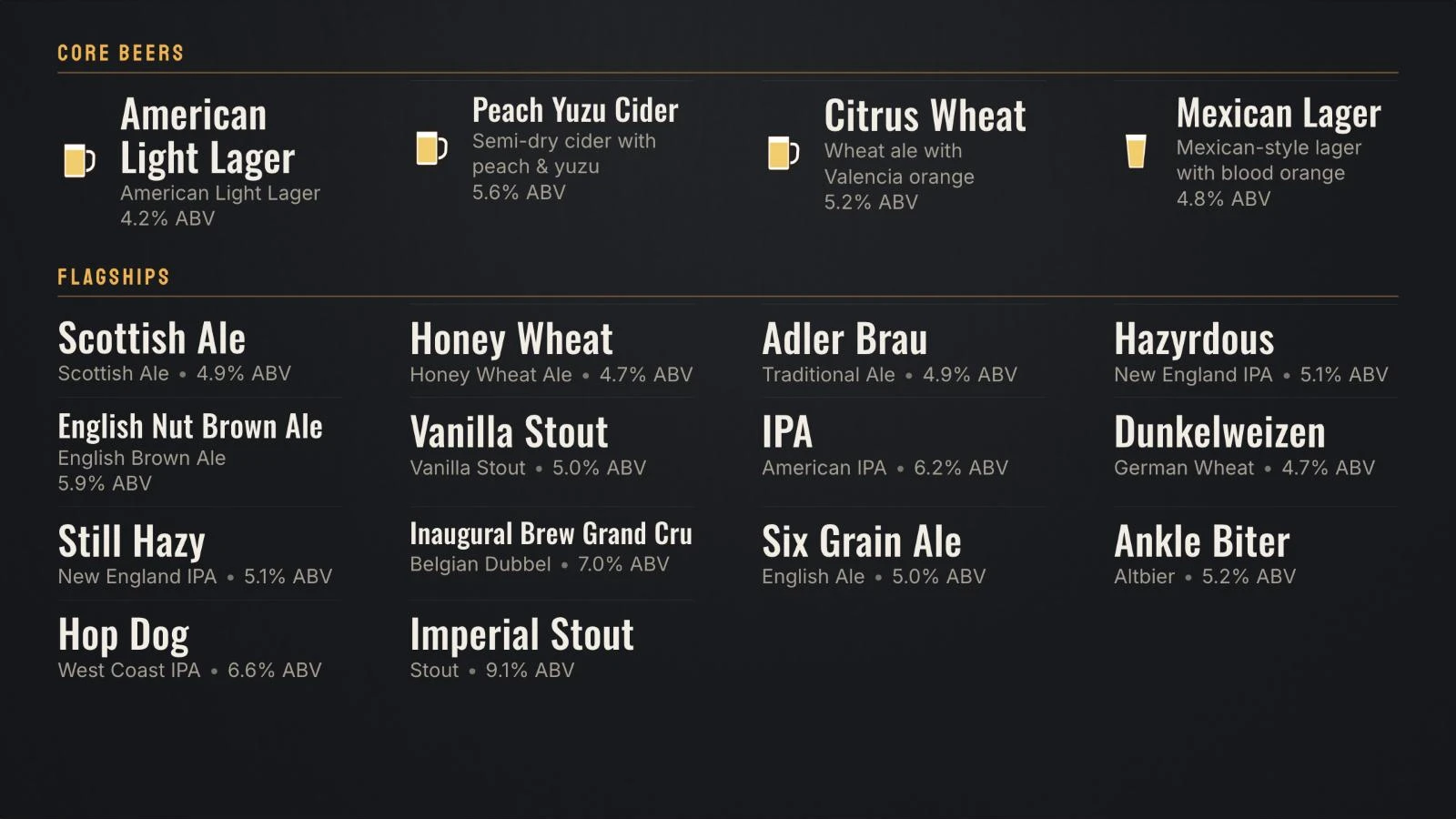
Each option shows a live preview with its own score, so you can compare before you commit. Here’s our board with Modernize:
Same menu, same dark look, but now it’s a theme built for readability: gold category headings, tall condensed beer names in four columns, and clear style and ABV lines. It also scores 100.
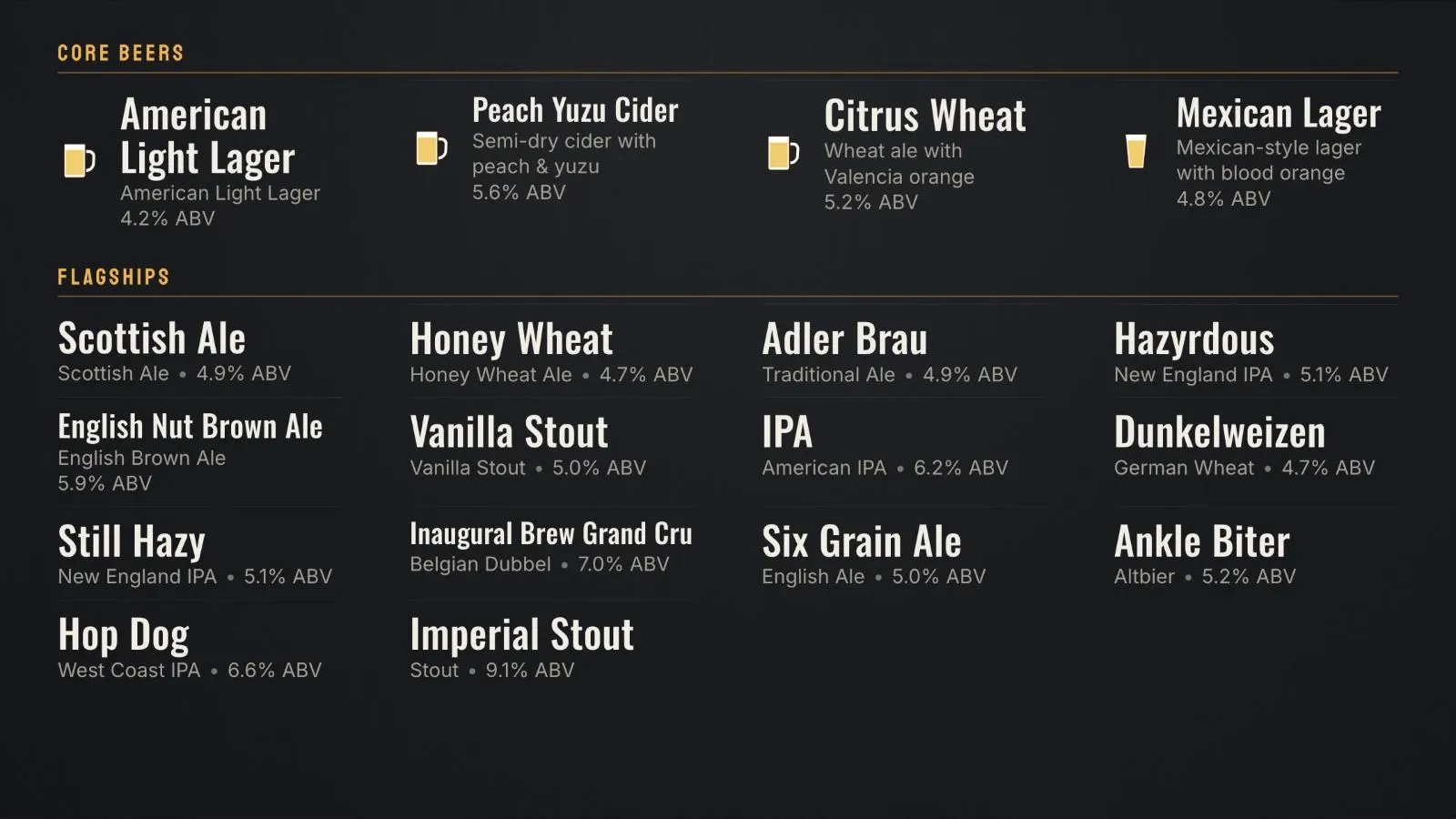
Themes size the text to fit by themselves, so a theme board stays readable as your menu changes. Add five new beers next week and the names shrink just enough to fit, not so much that nobody can read them. On theme boards, the Design Assistant’s fixes stick to the theme’s own settings, like text size, columns, background and brand color.
5. Or start fresh with any theme
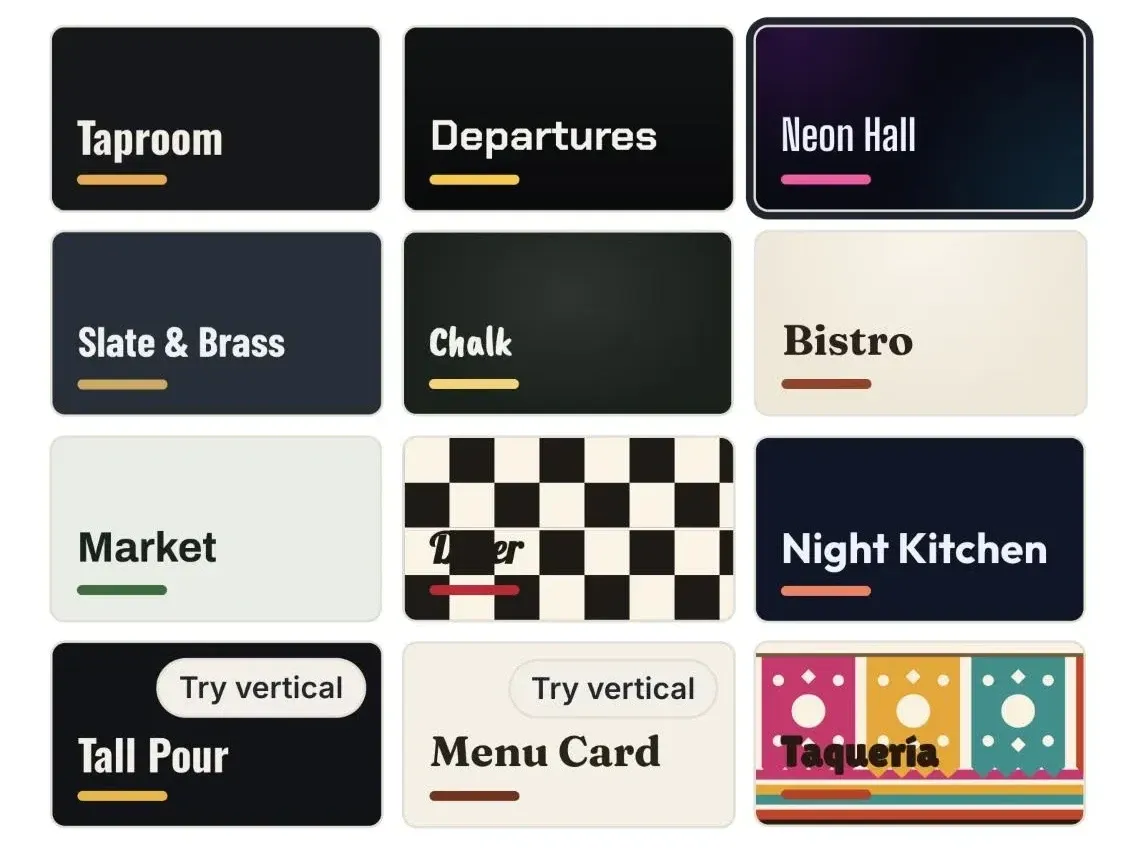
Want a whole new look? Choose Start fresh and pick from any of our board themes, from Taproom and Chalk to Neon Hall and Diner. Your menu and promos come along, and every theme is designed to score well from the start.
Nothing changes until you save
Everything you do in the Design Assistant happens in the preview. Your TV keeps showing your current board until you click Save changes (or Apply Modernize). Click Keep current design and the window closes with your board exactly as it was.
When you do save, your previous design goes to Board history first, so you can restore it any time.
Try it on your board
The Design Assistant is live now for every Live Tap Lists customer. Open any board in the editor, check your score, and click the pill to see how high you can take it.
New to Live Tap Lists? Every new board starts with a theme, so it reads well from day one. Start with the getting started guide, see everything digital menu boards can do, or start a free trial.