Introducing Board Themes: 13 Menu Board Designs That Fit Themselves
Designing a menu board used to mean a lot of decisions: fonts, sizes, spacing, columns, colors. Get one wrong and the board is hard to read from across the room. Add five beers and you start over.
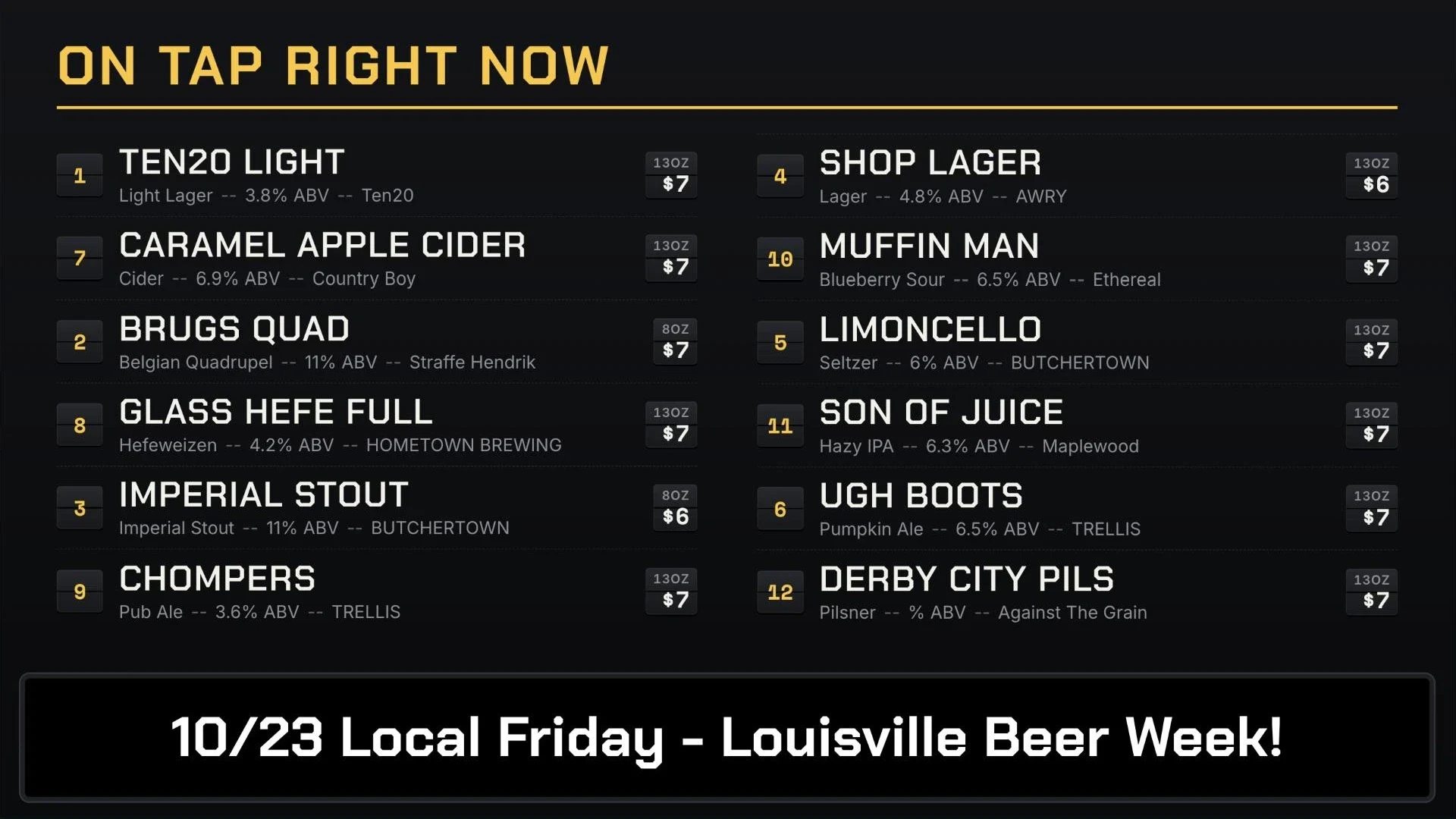
Today we’re introducing board themes: 13 designs for horizontal and vertical TVs. Pick one and Live Tap Lists does the design work. It sizes your text, picks the columns, makes room for your promos and keeps every color readable. When your menu changes, the board fits itself again.
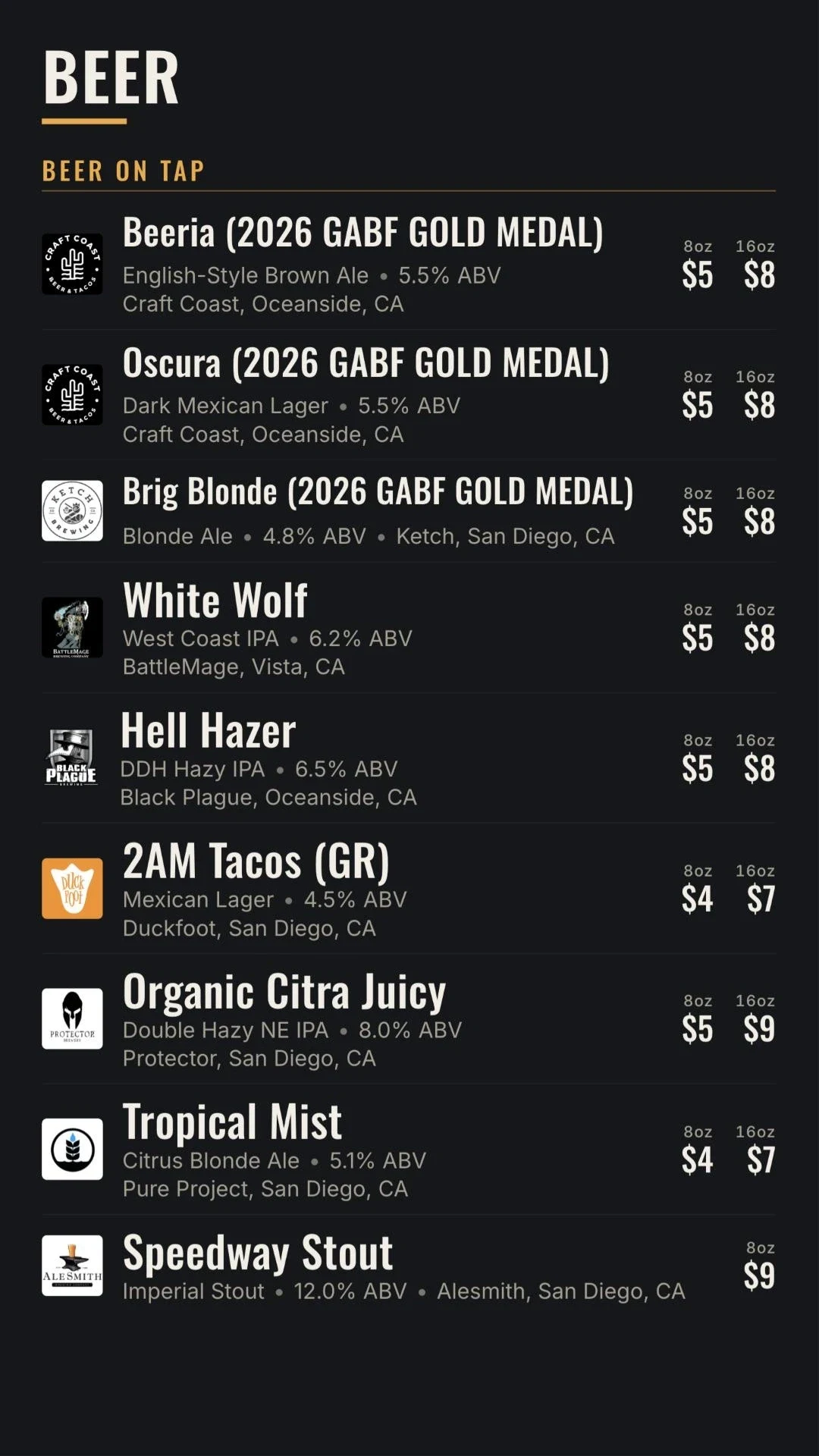
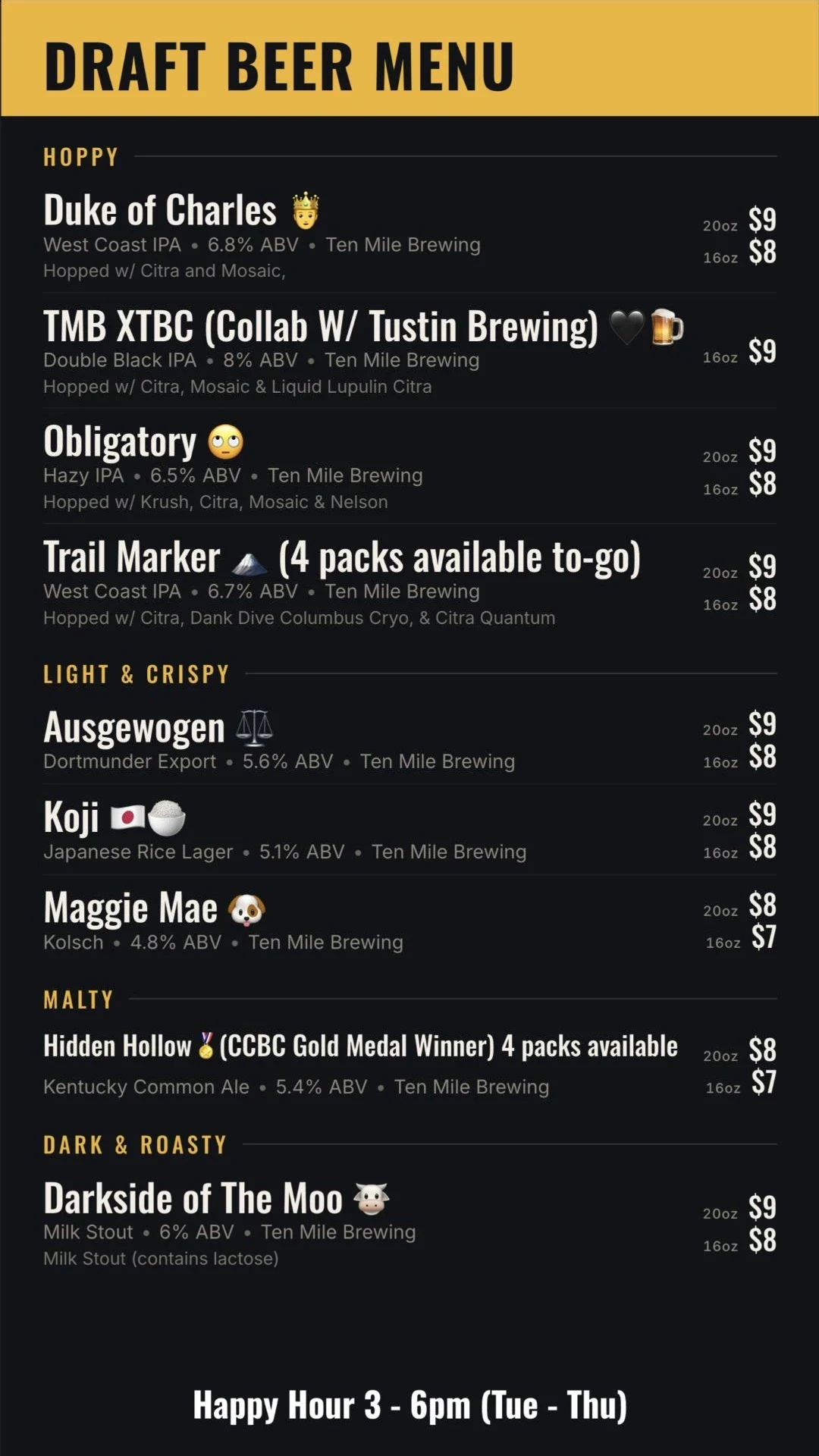
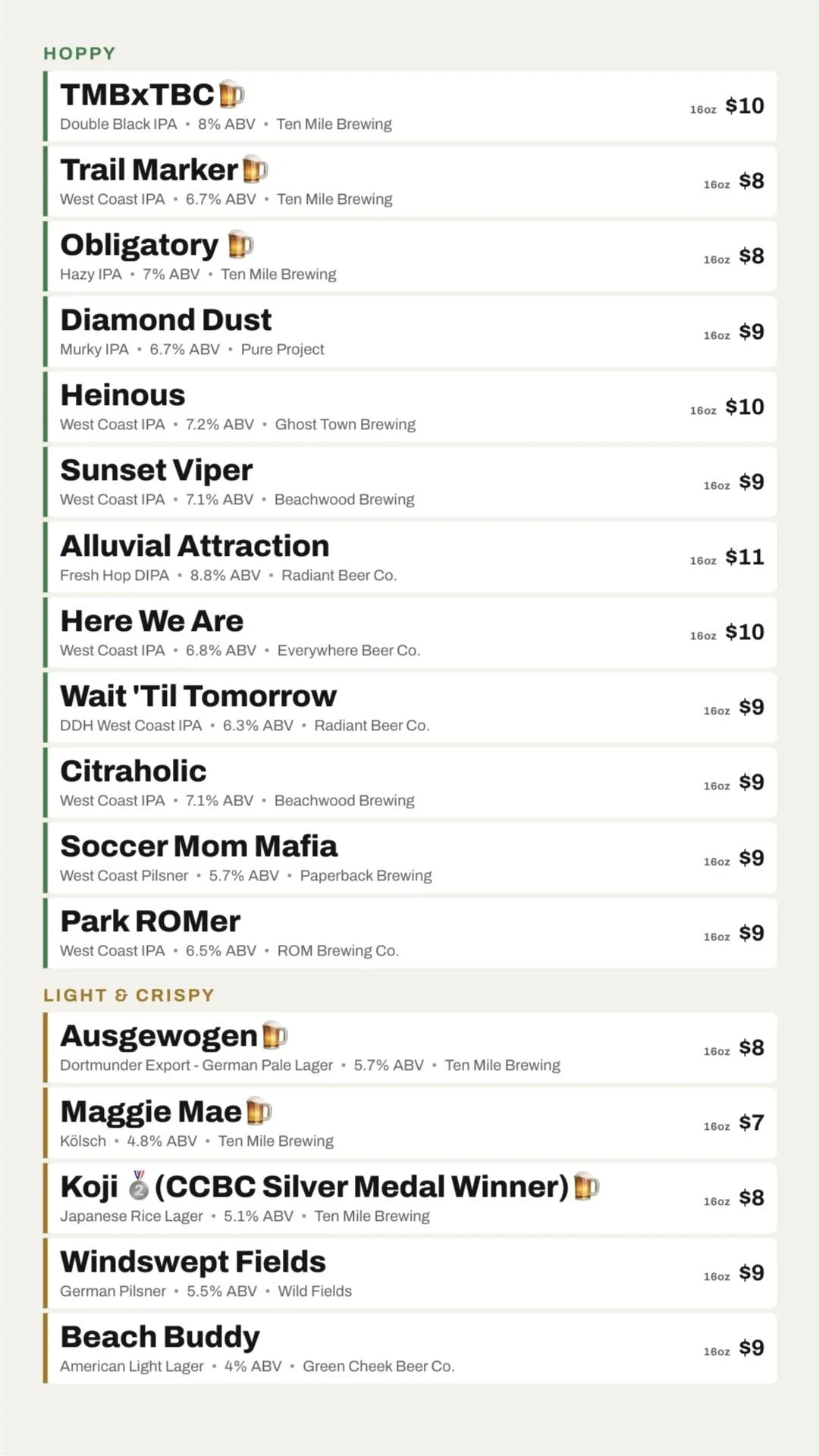
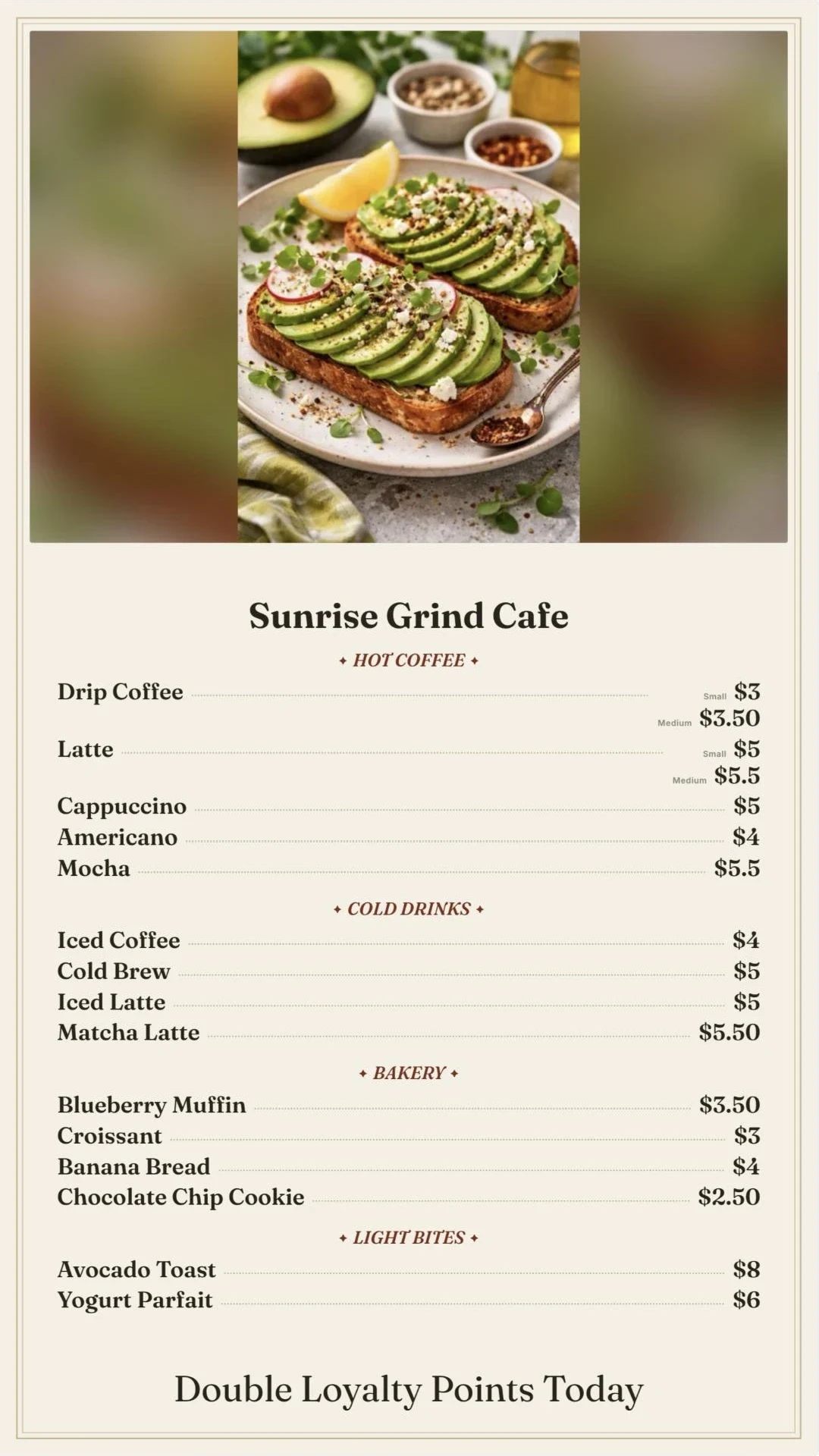
Every board below is a real Live Tap Lists menu with its real items and promos, shown in the theme. Click any board to see it full size.
The themes
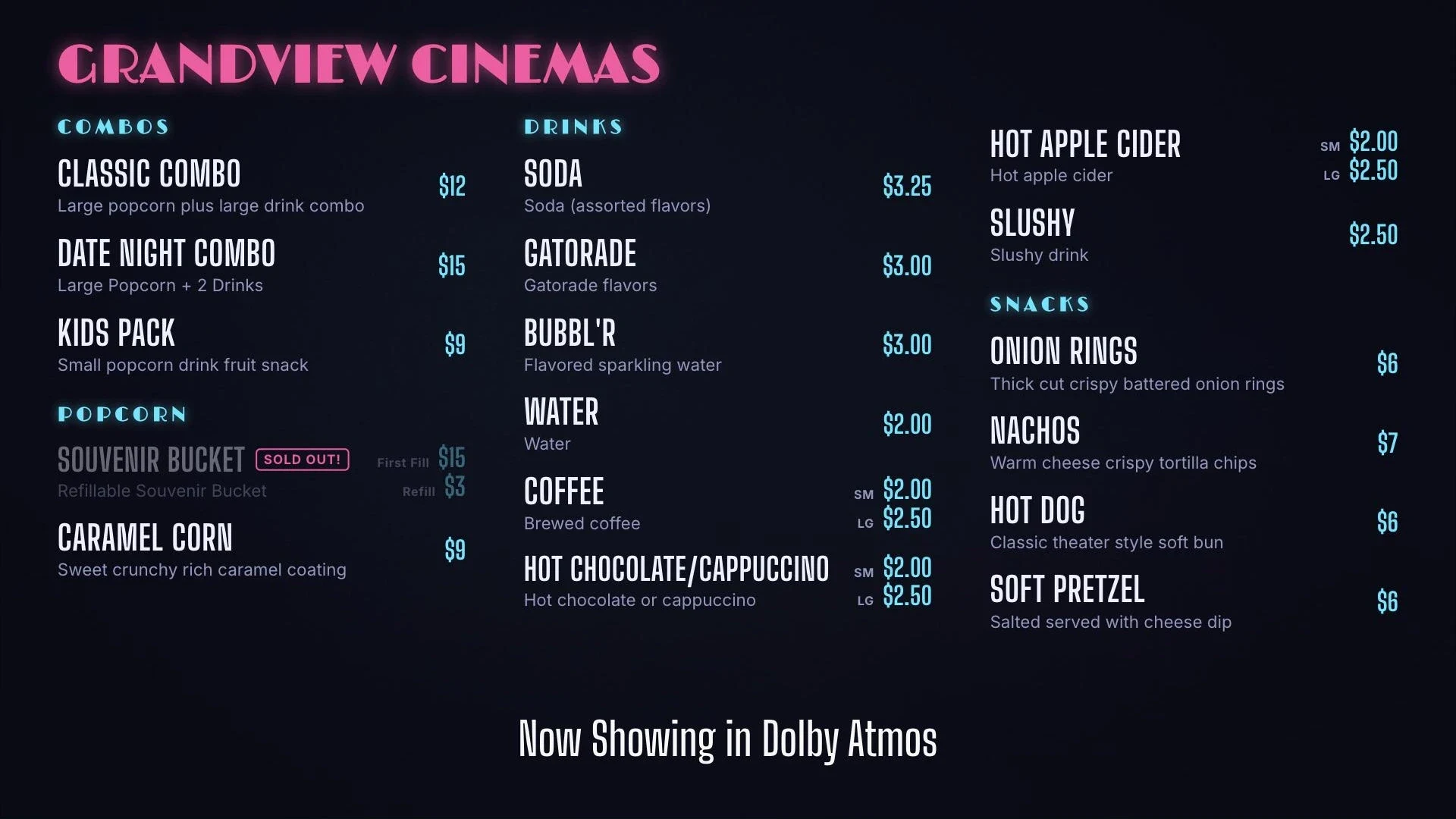
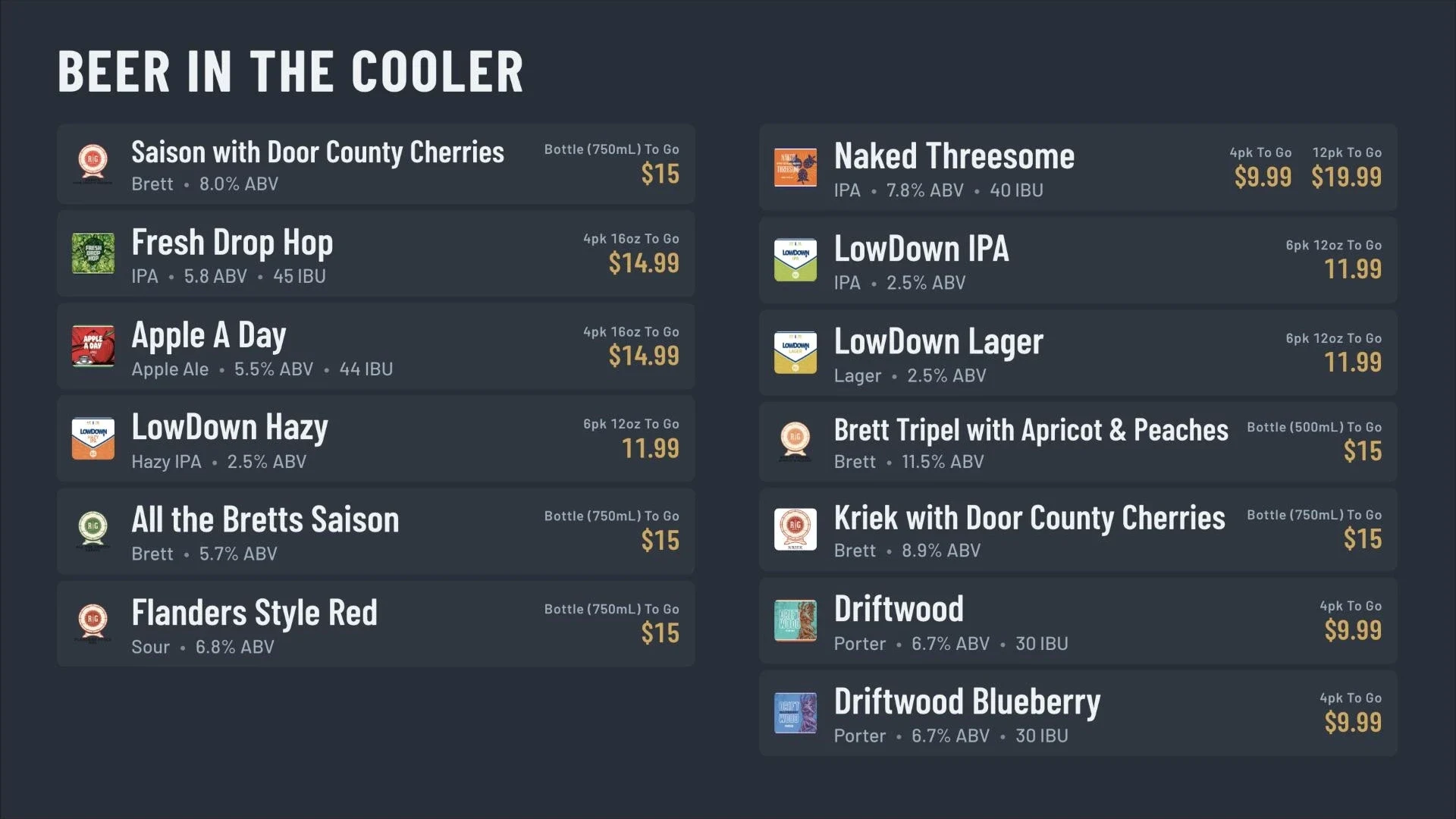
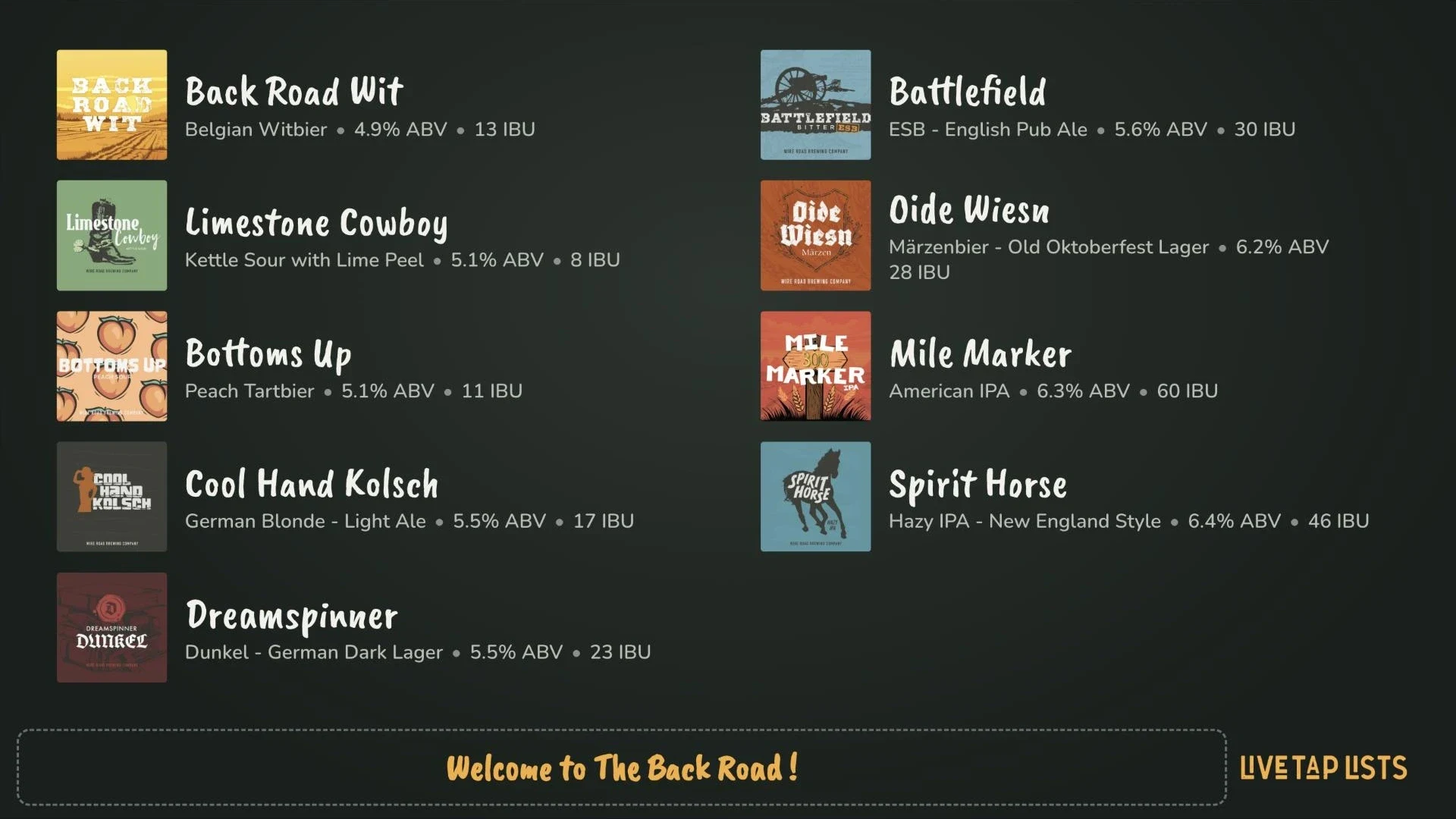
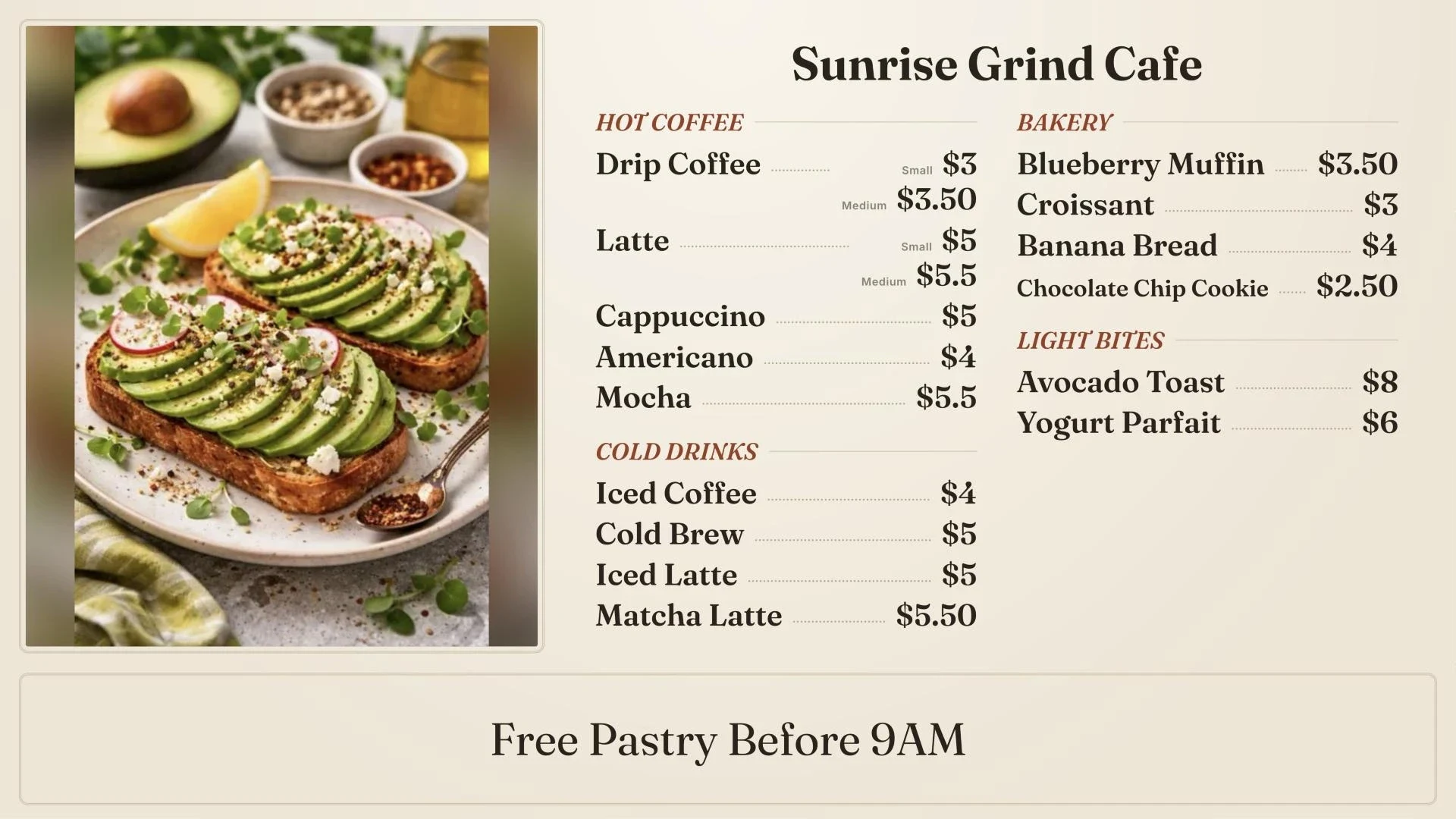
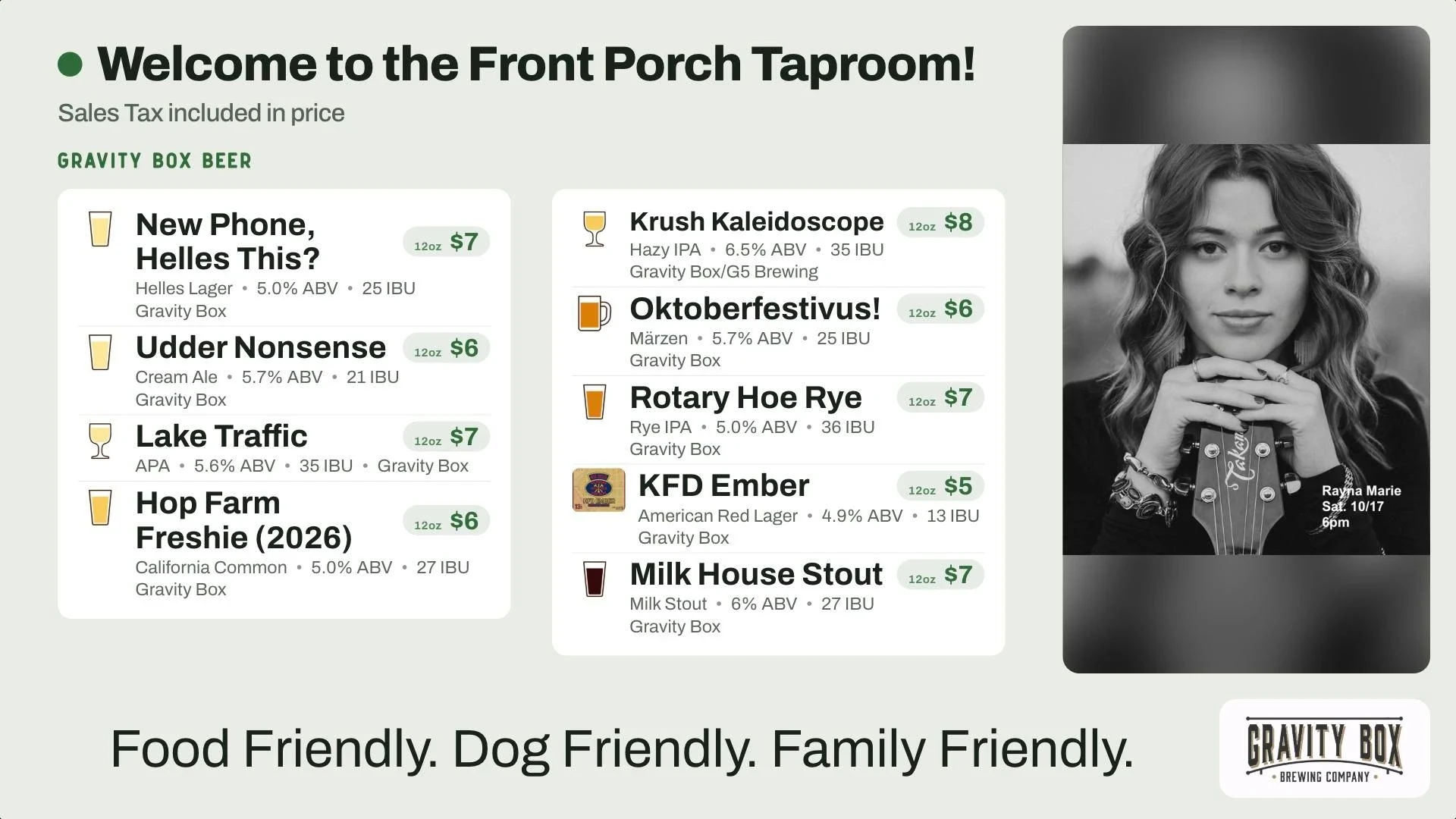
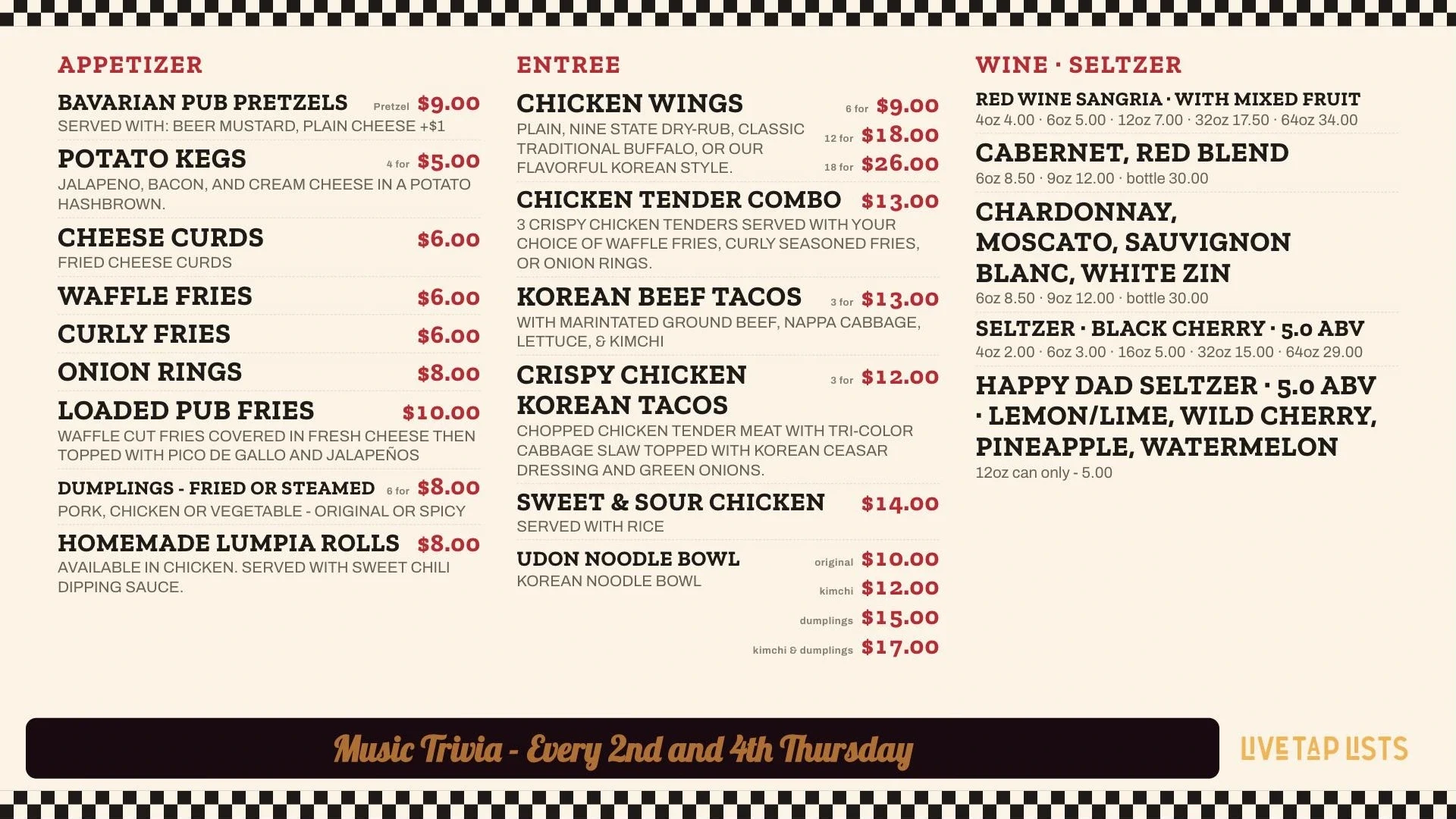
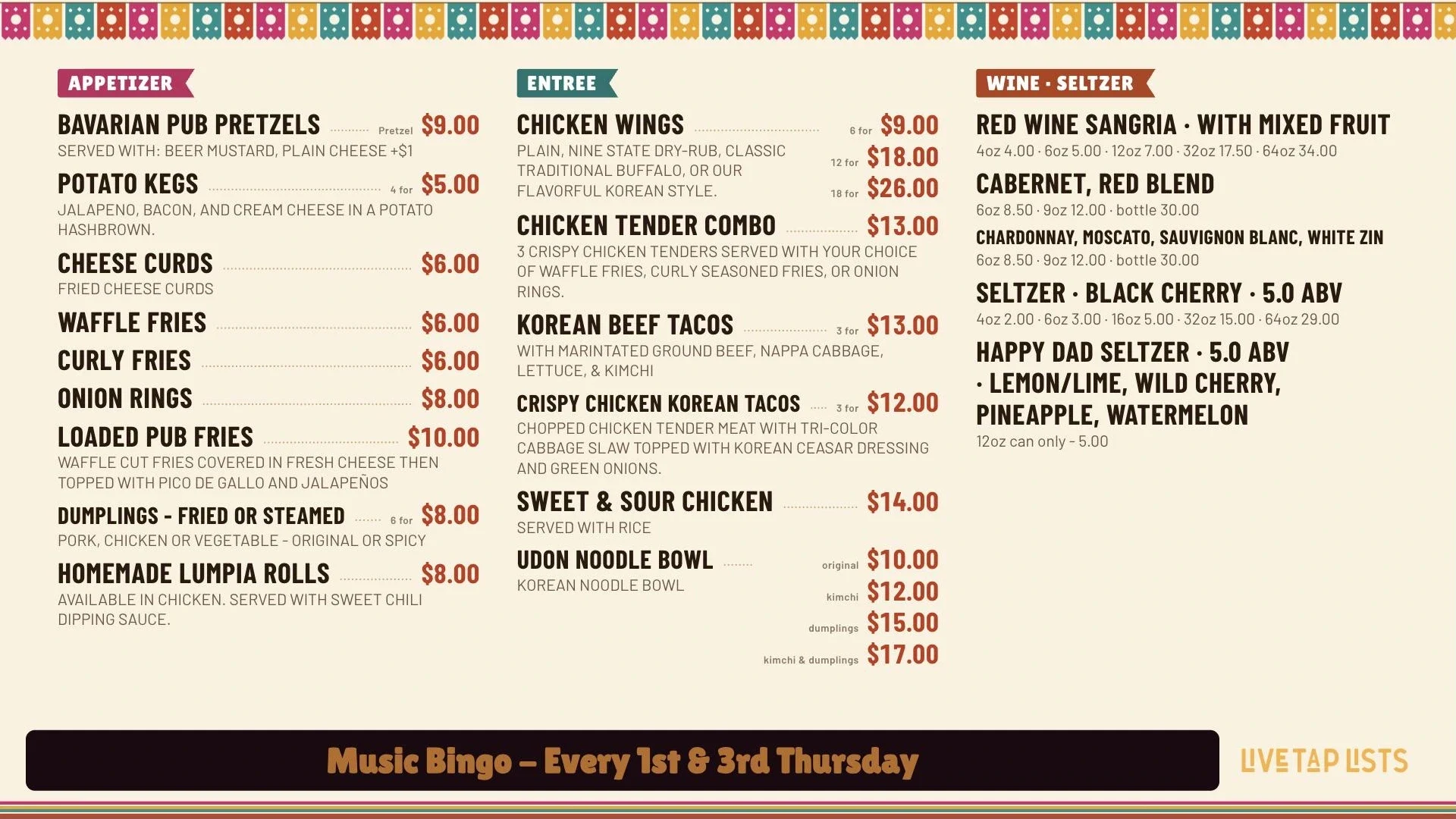
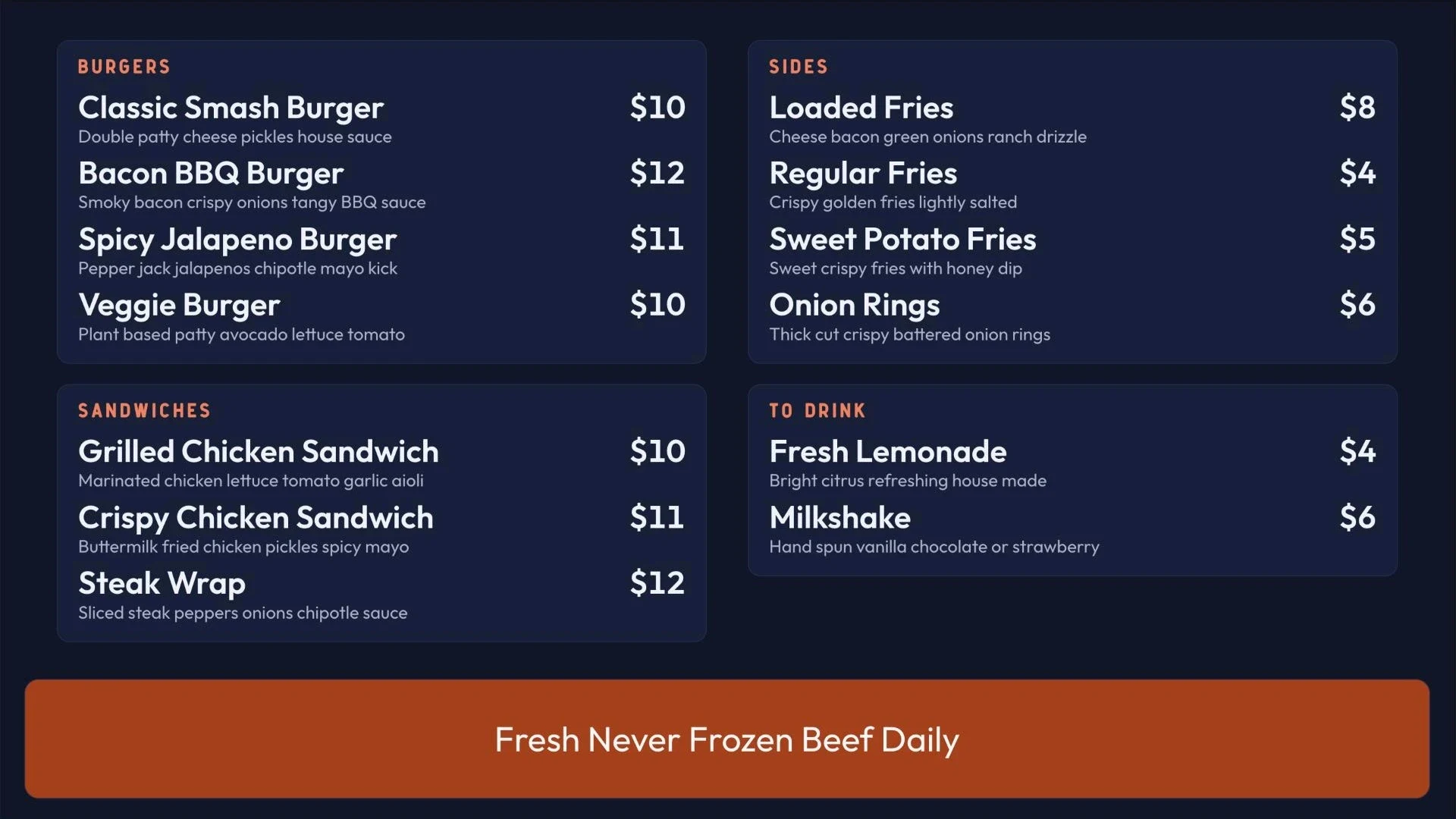
On vertical TVs
Every theme has a vertical layout. Set the Screen orientation to Turned right or Turned left and the theme lays the menu out for a tall screen, with the promo slot at the top or the bottom. Tall Pour and Menu Card are tagged Made for vertical: they’re designed for a single TV hung beside the taps or at the register.
What every theme does for you
- Text that fits itself. Auto layout finds the largest text that fits your items and picks the columns that read best. Long item names get fitted on their own instead of shrinking the whole board. You can still choose Columns (Auto, or 1 to 4), Text size (Largest that fits, or Smaller) and Keep categories together.
- Room for your promos. Every theme was designed and tested with promos showing, and frames them in its own style. Pick your Promo space and the theme sizes the menu around it, so a promo never pushes item names off the screen. More on Zone Promos.
- Your brand color, kept readable. Pick a Brand color from the theme’s swatches or choose your own. We check it against the background and adjust it if text would be hard to read, and tell you when we do. Change the fonts under Brand fonts.
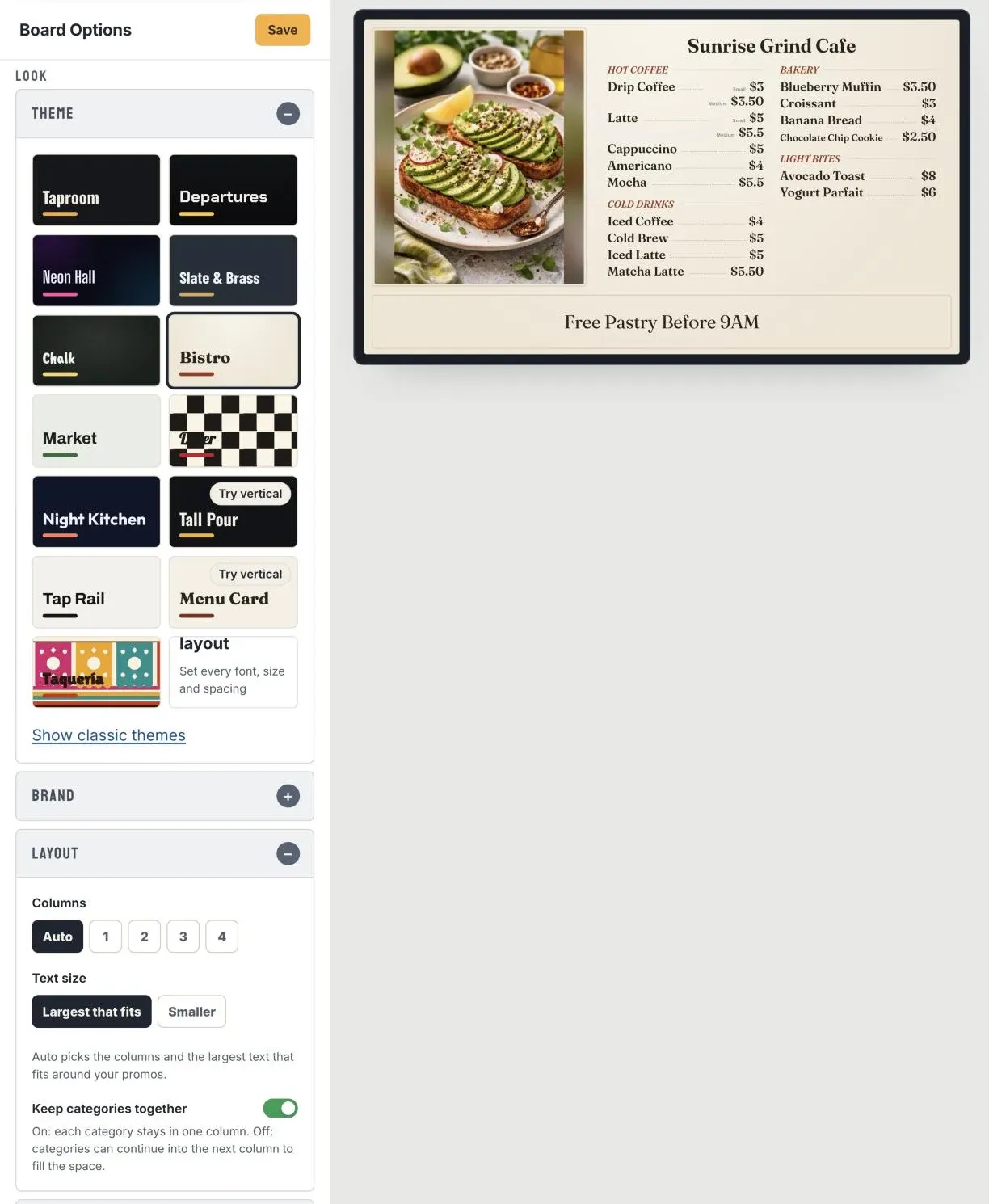
Want full control? Customize
Pick the Custom layout tile in the theme picker to set every font, size and spacing yourself. Your board switches to a custom layout that keeps the theme’s fonts, sizes and colors, so it looks the same, and you can change anything from there. Text no longer resizes by itself on a custom layout, and the theme design is saved to Board history first.
Your existing boards stay as they are
If you already have boards, nothing changes. They keep their design exactly as it is. When you’re ready, open a board and pick a theme: the preview shows your real menu in that theme, and nothing reaches your TV until you click Save. Your current design is saved to Board history (your last five designs) so you can restore it any time, and your own saved themes are still under Show classic themes.
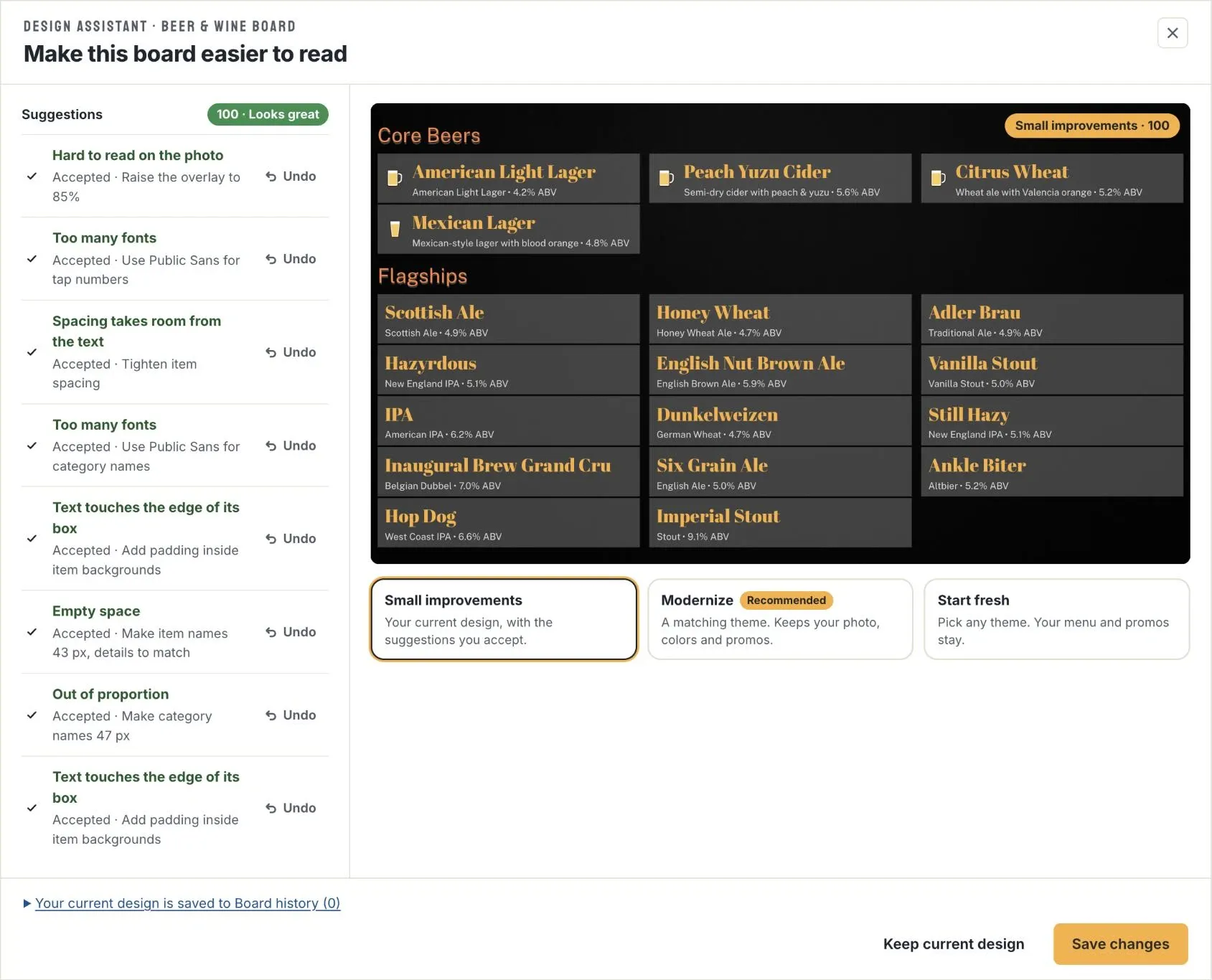
Not sure where to start? The new Design Assistant scores your board for readability, suggests fixes, and can switch it to a matching theme that keeps your photo, colors and promos.
Get started
Every new board now starts with a theme, so it reads well from the first time you put it on a TV. Follow the getting started guide, read our menu board design guide for the thinking behind the themes, or see everything digital menu boards can do. Not a customer yet? Start a free trial or book a demo.