How to Create Toast API Credentials for Live Tap Lists
Live Tap Lists connects to Toast with Standard API access credentials that you create yourself in Toast Web. There’s no “Connect” button to approve inside Toast, so setup takes a few manual steps. Most of the work is making sure your Toast account is allowed to create credentials. After that, it takes about five minutes.
You’ll end up with two values, a client ID and a client secret, that you paste into Live Tap Lists.
Before you start
You need two things in Toast. If you’re missing either one, the Toast API access menu won’t appear in Toast Web, or some of your locations will be grayed out.
1. Toast RMS Essentials or higher
Toast only offers Standard API access to locations on Toast Restaurant Management Suite (RMS) Essentials or a higher plan. Every location you want to sync needs it. A location without it shows up grayed out with a lock icon when you choose locations. If that happens, contact Toast to upgrade that location. After an upgrade, it can take a few minutes for the change to show in Toast Web.
2. The Manage Integrations permission
Your Toast Web user needs the 8.4 Manage Integrations permission (in the Account Admin group) at every location you want to sync. You also have to be an active employee at those locations.
If you don’t have it, ask whoever manages Toast for your restaurant to add it, usually to your job. Only someone who has the 8.2 User Permissions permission, and who holds Manage Integrations themselves, can grant it. Being an owner doesn’t grant permissions automatically.
Create the credentials in Toast Web
-
Sign in to Toast Web (opens in a new tab).
-
Go to Integrations › Toast API access › Manage credentials.
-
Click the down arrow next to Create new credentials and choose Standard API.
-
Enter a credential name you’ll recognize later, such as
Live Tap Lists. -
Under scopes, select these three:
- menus:read reads your menus, menu groups, sizes, prices, descriptions, and images.
- stock:read reads stock, so 86’d and out-of-stock items come off your menus.
- restaurants:read reads your location names, so you can pick the right one.
Live Tap Lists only reads from Toast. Standard API access is read-only, so Live Tap Lists can never change anything in your Toast account.
-
Under locations, select the location or locations you want on your menus and click Apply.
-
Click Confirm. Your new credentials appear in the table on the Manage credentials page, and Toast emails you a confirmation.
Copy your client ID and client secret
- On the Manage credentials page, click the pencil icon next to the credentials you just created.
- Copy the client ID (use Copy Client ID) and the client secret. You can also view both in JSON format.
Treat the client secret like a password. Don’t send it by email or text. If it gets out, use Rotate on the same page to create a new one, then reconnect Toast in Live Tap Lists with the new secret.
Connect Toast in Live Tap Lists
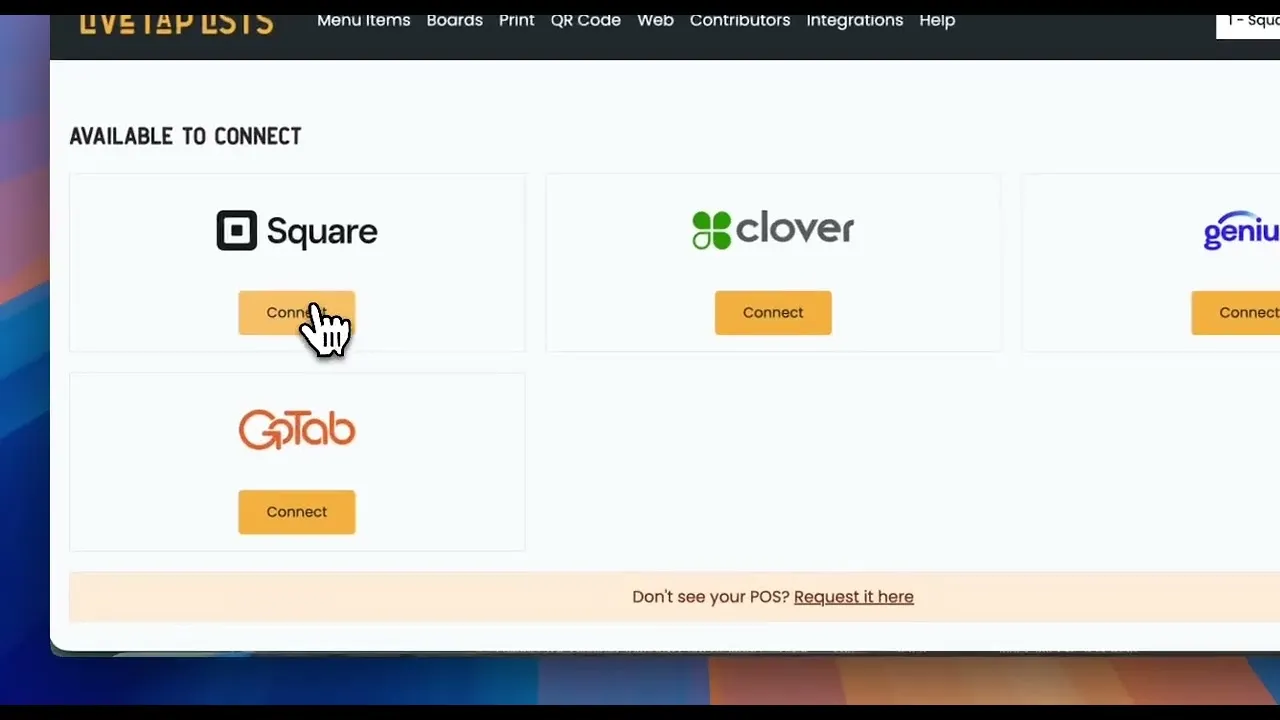
- In Live Tap Lists, open the Integrations page and choose Toast.
- Paste the Client ID and Client Secret, then click Connect.
- If your credentials cover more than one location, choose the one you want to sync.
That’s it. Live Tap Lists imports your Toast menu items. To get 86’d items and menu changes in seconds instead of once a day, add the two optional Toast webhooks next. Live Tap Lists walks you through it right after you connect, and it takes about two minutes.
Troubleshooting
I don’t see Toast API access under Integrations. Your user doesn’t have the Manage Integrations permission, or your location isn’t on RMS Essentials or higher. See Before you start.
A location is grayed out with a lock. That location isn’t on RMS Essentials or higher.
Live Tap Lists says Toast rejected the credentials. Check that you copied the whole client ID and client secret with no extra spaces. If you rotated the secret, use the new one.
Connecting works, but no items show up, or the location is missing. Edit the credentials in Toast Web (pencil icon) and make sure all three scopes are selected and the right locations are included, then connect again. Items hidden everywhere in Toast aren’t imported.
Still stuck? Contact us and we’ll help you get connected. For more on what syncs, see the Toast integration page.